An overview of the Graphics View framework for interactive 2D graphics.
图形视图提供用于管理大量定制 2D 图形项并与之交互的表面,用于可视化这些项的视图 Widget (支持缩放和旋转)。
框架包括事件传播体系结构,允许将精确双精度交互能力用于场景项。项可以处理按键事件,鼠标按下、移动、释放及双击事件,且它们还可以跟踪鼠标移动。
图形视图使用 BSP (二进制空间分区) 树以提供非常快速的项探索,因此,它可以实时可视化大型场景,甚至具有数百万的项。
图形视图在 Qt 4.2 引入,替换其前身 QCanvas。
话题:
Graphics View provides an item-based approach to model-view programming, much like InterView’s convenience classes
QTableView,QTreeViewandQListView。多个视图可以观测一个场景,且场景包含各种几何形状的项。
QGraphicsScene提供图形视图场景。场景有以下职责:
为管理大量项提供快速接口
把事件传播到每项
管理项状态 (譬如:选定和聚焦处理)
提供未变换渲染功能;主要用于印刷
场景充当容器为
QGraphicsItem对象。项被添加到场景通过调用addItem(), and then retrieved by calling one of the many item discovery functions.items()and its overloads return all items contained by or intersecting with a point, a rectangle, a polygon or a general vector path.itemAt()returns the topmost item at a particular point. All item discovery functions return the items in descending stacking order (i.e., the first returned item is topmost, and the last item is bottom-most).QGraphicsScene scene; QGraphicsRectItem *rect = scene.addRect(QRectF(0, 0, 100, 100)); QGraphicsItem *item = scene.itemAt(50, 50); // item == rect
QGraphicsScene‘s event propagation architecture schedules scene events for delivery to items, and also manages propagation between items. If the scene receives a mouse press event at a certain position, the scene passes the event on to whichever item is at that position.
QGraphicsScenealso manages certain item states, such as item selection and focus. You can select items on the scene by callingsetSelectionArea(), passing an arbitrary shape. This functionality is also used as a basis for rubberband selection inQGraphicsView. To get the list of all currently selected items, callselectedItems(). Another state handled byQGraphicsSceneis whether or not an item has keyboard input focus. You can set focus on an item by callingsetFocusItem()orsetFocus(), or get the current focus item by callingfocusItem().最后,
QGraphicsSceneallows you to render parts of the scene into a paint device through therender()function. You can read more about this in the Printing section later in this document.
QGraphicsViewprovides the view widget, which visualizes the contents of a scene. You can attach several views to the same scene, to provide several viewports into the same data set. The view widget is a scroll area, and provides scroll bars for navigating through large scenes. To enable OpenGL support, you can set aQOpenGLWidgetas the viewport by callingsetViewport().QGraphicsScene scene; myPopulateScene(&scene); QGraphicsView view(&scene); view.show();The view receives input events from the keyboard and mouse, and translates these to scene events (converting the coordinates used to scene coordinates where appropriate), before sending the events to the visualized scene.
Using its transformation matrix,
transform(), the view can transform the scene’s coordinate system. This allows advanced navigation features such as zooming and rotation. For convenience,QGraphicsViewalso provides functions for translating between view and scene coordinates:mapToScene()andmapFromScene().
QGraphicsItemis the base class for graphical items in a scene. Graphics View provides several standard items for typical shapes, such as rectangles (QGraphicsRectItem), ellipses (QGraphicsEllipseItem) and text items (QGraphicsTextItem), but the most powerfulQGraphicsItemfeatures are available when you write a custom item. Among other things,QGraphicsItem支持下列特征:
Mouse press, move, release and double click events, as well as mouse hover events, wheel events, and context menu events.
键盘输入聚焦和键事件
拖放
Grouping, both through parent-child relationships, and with
QGraphicsItemGroup碰撞检测
Items live in a local coordinate system, and like
QGraphicsView, it also provides many functions for mapping coordinates between the item and the scene, and from item to item. Also, likeQGraphicsView, it can transform its coordinate system using a matrix:transform(). This is useful for rotating and scaling individual items.Items can contain other items (children). Parent items’ transformations are inherited by all its children. Regardless of an item’s accumulated transformation, though, all its functions (e.g.,
contains(),boundingRect(), QGraphicsItem::collidesWith()) still operate in local coordinates.
QGraphicsItemsupports collision detection through theshape()function, and QGraphicsItem::collidesWith(), which are both virtual functions. By returning your item’s shape as a local coordinateQPainterPathfromshape(),QGraphicsItemwill handle all collision detection for you. If you want to provide your own collision detection, however, you can reimplement QGraphicsItem::collidesWith().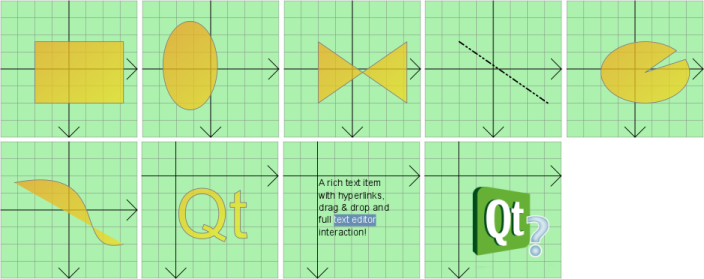
这些类提供用于创建交互应用程序的框架。
QGraphicsEffect 类是用于所有图形效果的基类。
QGraphicsAnchorLayout 类提供可以在图形视图中将 Widget 锚定在一起的布局。
PySide2.QtWidgets.QGraphicsAnchorThe QGraphicsAnchor class represents an anchor between two items in a QGraphicsAnchorLayout.
QGraphicsGridLayout 类提供用于在图形视图中管理 Widget 的栅格布局。
The QGraphicsItem class is the base class for all graphical items in a QGraphicsScene.
QGraphicsObject 类提供基类用于所有要求信号、槽及特性的图形项。
The QAbstractGraphicsShapeItem class provides a common base for all path items.
The QGraphicsPathItem class provides a path item that you can add to a QGraphicsScene.
The QGraphicsRectItem class provides a rectangle item that you can add to a QGraphicsScene.
The QGraphicsEllipseItem class provides an ellipse item that you can add to a QGraphicsScene.
The QGraphicsPolygonItem class provides a polygon item that you can add to a QGraphicsScene.
The QGraphicsLineItem class provides a line item that you can add to a QGraphicsScene.
The QGraphicsPixmapItem class provides a pixmap item that you can add to a QGraphicsScene.
The QGraphicsTextItem class provides a text item that you can add to a QGraphicsScene to display formatted text.
The QGraphicsSimpleTextItem class provides a simple text path item that you can add to a QGraphicsScene.
QGraphicsItemGroup 类提供将一组项视为单项的容器。
The QGraphicsItemAnimation class provides simple animation support for QGraphicsItem.
QGraphicsLayout 类提供基类为图形视图中的所有布局。
QGraphicsLayoutItem 类可以被继承以允许自定义项由布局进行管理。
QGraphicsLinearLayout 类提供用于在图形视图中管理 Widget 的水平或垂直布局。
The QGraphicsProxyWidget class provides a proxy layer for embedding a QWidget in a QGraphicsScene.
QGraphicsScene 类提供用于管理大量 2D 图形项的表面。
The QGraphicsSceneBspTreeIndex class provides an implementation of a BSP indexing algorithm for discovering items in QGraphicsScene.
QGraphicsSceneEvent 类提供基类为所有图形视图相关事件。
QGraphicsSceneMouseEvent 类提供在图形视图框架中的鼠标事件。
QGraphicsSceneWheelEvent 类提供在图形视图框架中的滚轮事件。
QGraphicsSceneContextMenuEvent 类在图形视图框架中提供上下文菜单事件。
QGraphicsSceneHoverEvent 类提供在图形视图框架中的悬停事件。
QGraphicsSceneHelpEvent 类提供当请求工具提示时的事件。
QGraphicsSceneDragDropEvent 类提供用于图形视图框架的拖放事件。
QGraphicsSceneResizeEvent 类提供用于在图形视图框架中重置 Widget 尺寸的事件。
QGraphicsSceneMoveEvent 类提供用于在图形视图框架中移动 Widget 的事件。
The QGraphicsSceneIndex class provides a base class to implement a custom indexing algorithm for discovering items in QGraphicsScene.
The QGraphicsSceneLinearIndex class provides an implementation of a linear indexing algorithm for discovering items in QGraphicsScene.
QGraphicsTransform 类是抽象基类用于在 QGraphicsItems 构建高级变换。
The QGraphicsView class provides a widget for displaying the contents of a QGraphicsScene.
The QGraphicsWidget class is the base class for all widget items in a QGraphicsScene.
The QStyleOptionGraphicsItem class is used to describe the parameters needed to draw a QGraphicsItem.
Graphics View is based on the Cartesian coordinate system; items’ position and geometry on the scene are represented by sets of two numbers: the x-coordinate, and the y-coordinate. When observing a scene using an untransformed view, one unit on the scene is represented by one pixel on the screen.
注意
The inverted Y-axis coordinate system (where
ygrows upwards) is unsupported as Graphics Views uses Qt’s coordinate system.There are three effective coordinate systems in play in Graphics View: Item coordinates, scene coordinates, and view coordinates. To simplify your implementation, Graphics View provides convenience functions that allow you to map between the three coordinate systems.
When rendering, Graphics View’s scene coordinates correspond to
QPainter‘s logical coordinates, and view coordinates are the same as device coordinates. In the 坐标系统 documentation, you can read about the relationship between logical coordinates and device coordinates.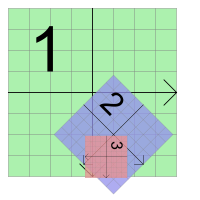
Items live in their own local coordinate system. Their coordinates are usually centered around its center point (0, 0), and this is also the center for all transformations. Geometric primitives in the item coordinate system are often referred to as item points, item lines, or item rectangles.
When creating a custom item, item coordinates are all you need to worry about;
QGraphicsSceneandQGraphicsViewwill perform all transformations for you. This makes it very easy to implement custom items. For example, if you receive a mouse press or a drag enter event, the event position is given in item coordinates. Thecontains()virtual function, which returnstrueif a certain point is inside your item, and false otherwise, takes a point argument in item coordinates. Similarly, an item’s bounding rect and shape are in item coordinates.At item’s position is the coordinate of the item’s center point in its parent’s coordinate system; sometimes referred to as parent coordinates. The scene is in this sense regarded as all parent-less items’ “parent”. Top level items’ position are in scene coordinates.
Child coordinates are relative to the parent’s coordinates. If the child is untransformed, the difference between a child coordinate and a parent coordinate is the same as the distance between the items in parent coordinates. For example: If an untransformed child item is positioned precisely in its parent’s center point, then the two items’ coordinate systems will be identical. If the child’s position is (10, 0), however, the child’s (0, 10) point will correspond to its parent’s (10, 10) point.
Because items’ position and transformation are relative to the parent, child items’ coordinates are unaffected by the parent’s transformation, although the parent’s transformation implicitly transforms the child. In the above example, even if the parent is rotated and scaled, the child’s (0, 10) point will still correspond to the parent’s (10, 10) point. Relative to the scene, however, the child will follow the parent’s transformation and position. If the parent is scaled (2x, 2x), the child’s position will be at scene coordinate (20, 0), and its (10, 0) point will correspond to the point (40, 0) on the scene.
With
pos()being one of the few exceptions,QGraphicsItem‘s functions operate in item coordinates, regardless of the item, or any of its parents’ transformation. For example, an item’s bounding rect (i.e.boundingRect()) is always given in item coordinates.
The scene represents the base coordinate system for all its items. The scene coordinate system describes the position of each top-level item, and also forms the basis for all scene events delivered to the scene from the view. Each item on the scene has a scene position and bounding rectangle (
scenePos(),sceneBoundingRect()), in addition to its local item pos and bounding rectangle. The scene position describes the item’s position in scene coordinates, and its scene bounding rect forms the basis for howQGraphicsScenedetermines what areas of the scene have changed. Changes in the scene are communicated through thechanged()signal, and the argument is a list of scene rectangles.
View coordinates are the coordinates of the widget. Each unit in view coordinates corresponds to one pixel. What’s special about this coordinate system is that it is relative to the widget, or viewport, and unaffected by the observed scene. The top left corner of
QGraphicsView‘s viewport is always (0, 0), and the bottom right corner is always (viewport width, viewport height). All mouse events and drag and drop events are originally received as view coordinates, and you need to map these coordinates to the scene in order to interact with items.
Often when dealing with items in a scene, it can be useful to map coordinates and arbitrary shapes from the scene to an item, from item to item, or from the view to the scene. For example, when you click your mouse in
QGraphicsView‘s viewport, you can ask the scene what item is under the cursor by callingmapToScene(), followed byitemAt(). If you want to know where in the viewport an item is located, you can callmapToScene()on the item, thenmapFromScene()on the view. Finally, if you use want to find what items are inside a view ellipse, you can pass aQPainterPathto mapToScene(), and then pass the mapped path toitems().You can map coordinates and shapes to and from an item’s scene by calling
mapToScene()andmapFromScene(). You can also map to an item’s parent item by callingmapToParent()andmapFromParent(), or between items by callingmapToItem()andmapFromItem(). All mapping functions can map both points, rectangles, polygons and paths.The same mapping functions are available in the view, for mapping to and from the scene.
mapFromScene()andmapToScene(). To map from a view to an item, you first map to the scene, and then map from the scene to the item.
QGraphicsViewsupports the same affine transformations asQPainterdoes throughsetMatrix(). By applying a transformation to the view, you can easily add support for common navigation features such as zooming and rotating.Here is an example of how to implement zoom and rotate slots in a subclass of
QGraphicsView:class View : public QGraphicsView { Q_OBJECT ... public slots: void zoomIn() { scale(1.2, 1.2); } void zoomOut() { scale(1 / 1.2, 1 / 1.2); } void rotateLeft() { rotate(-10); } void rotateRight() { rotate(10); } ... };The slots could be connected to
QToolButtonswithautoRepeatenabled.
QGraphicsViewkeeps the center of the view aligned when you transform the view.另请参阅 Elastic Nodes example for code that shows how to implement basic zooming features.
Graphics View provides single-line printing through its rendering functions,
render()andrender(). The functions provide the same API: You can have the scene or the view render all or parts of their contents into any paint device by passing aQPainterto either of the rendering functions. This example shows how to print the whole scene into a full page, usingQPrinter.QGraphicsScene scene; scene.addRect(QRectF(0, 0, 100, 200), QPen(Qt::black), QBrush(Qt::green)); QPrinter printer; if (QPrintDialog(&printer).exec() == QDialog::Accepted) { QPainter painter(&printer); painter.setRenderHint(QPainter::Antialiasing); scene.render(&painter); }The difference between the scene and view rendering functions is that one operates in scene coordinates, and the other in view coordinates.
render()is often preferred for printing whole segments of a scene untransformed, such as for plotting geometrical data, or for printing a text document.render(), on the other hand, is suitable for taking screenshots; its default behavior is to render the exact contents of the viewport using the provided painter.QGraphicsScene scene; scene.addRect(QRectF(0, 0, 100, 200), QPen(Qt::black), QBrush(Qt::green)); QPixmap pixmap; QPainter painter(&pixmap); painter.setRenderHint(QPainter::Antialiasing); scene.render(&painter); painter.end(); pixmap.save("scene.png");When the source and target areas’ sizes do not match, the source contents are stretched to fit into the target area. By passing a
AspectRatioModeto the rendering function you are using, you can choose to maintain or ignore the aspect ratio of the scene when the contents are stretched.
因为
QGraphicsView继承QWidgetindirectly, it already provides the same drag and drop functionality thatQWidgetprovides. In addition, as a convenience, the Graphics View framework provides drag and drop support for the scene, and for each and every item. As the view receives a drag, it translates the drag and drop events into aQGraphicsSceneDragDropEvent, which is then forwarded to the scene. The scene takes over scheduling of this event, and sends it to the first item under the mouse cursor that accepts drops.To start a drag from an item, create a
QDragobject, passing a pointer to the widget that starts the drag. Items can be observed by many views at the same time, but only one view can start the drag. Drags are in most cases started as a result of pressing or moving the mouse, so in mousePressEvent() or mouseMoveEvent(), you can get the originating widget pointer from the event. For example:void CustomItem::mousePressEvent(QGraphicsSceneMouseEvent *event) { QMimeData *data = new QMimeData; data->setColor(Qt::green); QDrag *drag = new QDrag(event->widget()); drag->setMimeData(data); drag->start(); }To intercept drag and drop events for the scene, you reimplement
dragEnterEvent()and whichever event handlers your particular scene needs, in aQGraphicsItemsubclass. You can read more about drag and drop in Graphics View in the documentation for each ofQGraphicsScene‘s event handlers.Items can enable drag and drop support by calling
setAcceptDrops(). To handle the incoming drag, reimplementdragEnterEvent(),dragMoveEvent(),dragLeaveEvent(),和dropEvent().另请参阅 Drag and Drop Robot example for a demonstration of Graphics View’s support for drag and drop operations.
像
QWidget,QGraphicsItemalso supports cursors (setCursor()), and tooltips (setToolTip()). The cursors and tooltips are activated byQGraphicsViewas the mouse cursor enters the item’s area (detected by callingcontains()).You can also set a default cursor directly on the view by calling
setCursor().另请参阅 Drag and Drop Robot example for code that implements tooltips and cursor shape handling.
Graphics View supports animation at several levels. You can easily assemble animation by using the Animation Framework. For that you’ll need your items to inherit from
QGraphicsObjectand associateQPropertyAnimationwith them.QPropertyAnimationallows to animate anyQObject特性。Another option is to create a custom item that inherits from
QObjectandQGraphicsItem. The item can the set up its own timers, and control animations with incremental steps intimerEvent().A third option, which is mostly available for compatibility with QCanvas in Qt 3, is to advance the scene by calling
advance(), which in turn callsadvance().
To enable OpenGL rendering, you simply set a new
QOpenGLWidgetas the viewport ofQGraphicsView通过调用setViewport(). If you want OpenGL with antialiasing, you need to set aQSurfaceFormatwith the needed sample count (seesetSamples()).范例:
QGraphicsView view(&scene);
QOpenGLWidget *gl = new QOpenGLWidget();
QSurfaceFormat format;
format.setSamples(4);
gl->setFormat(format);
view.setViewport(gl);
By making an item a child of another, you can achieve the most essential feature of item grouping: the items will move together, and all transformations are propagated from parent to child.
此外,
QGraphicsItemGroupis a special item that combines child event handling with a useful interface for adding and removing items to and from a group. Adding an item to aQGraphicsItemGroupwill keep the item’s original position and transformation, whereas reparenting items in general will cause the child to reposition itself relative to its new parent. For convenience, you can createQGraphicsItemGroups through the scene by callingcreateItemGroup().
Qt 4.4 introduced support for geometry and layout-aware items through QGraphicsWidget . This special base item is similar to
QWidget, but unlikeQWidget, it doesn’t inherit fromQPaintDevice; rather fromQGraphicsIteminstead. This allows you to write complete widgets with events, signals & slots, size hints and policies, and you can also manage your widgets geometries in layouts throughQGraphicsLinearLayoutandQGraphicsGridLayout.
Building on top of
QGraphicsItem‘s capabilities and lean footprint, QGraphicsWidget provides the best of both worlds: extra functionality fromQWidget, such as the style, font, palette, layout direction, and its geometry, and resolution independence and transformation support fromQGraphicsItem. Because Graphics View uses real coordinates instead of integers, QGraphicsWidget ‘s geometry functions also operate onQRectFandQPointF. This also applies to frame rects, margins and spacing. With QGraphicsWidget it’s not uncommon to specify contents margins of (0.5, 0.5, 0.5, 0.5), for example. You can create both subwidgets and “top-level” windows; in some cases you can now use Graphics View for advanced MDI applications.Some of
QWidget‘s properties are supported, including window flags and attributes, but not all. You should refer to QGraphicsWidget ‘s class documentation for a complete overview of what is and what is not supported. For example, you can create decorated windows by passing theWindowwindow flag to QGraphicsWidget ‘s constructor, but Graphics View currently doesn’t support theSheetandDrawerflags that are common on macOS.
QGraphicsLayout is part of a second-generation layout framework designed specifically for QGraphicsWidget . Its API is very similar to that of
QLayout. You can manage widgets and sublayouts inside eitherQGraphicsLinearLayoutandQGraphicsGridLayout. You can also easily write your own layout by subclassing QGraphicsLayout yourself, or add your ownQGraphicsItemitems to the layout by writing an adaptor subclass ofQGraphicsLayoutItem.
Graphics View provides seamless support for embedding any widget into the scene. You can embed simple widgets, such as
QLineEditorQPushButton, complex widgets such asQTabWidget, and even complete main windows. To embed your widget to the scene, simply calladdWidget(), or create an instance ofQGraphicsProxyWidgetto embed your widget manually.Through
QGraphicsProxyWidget, Graphics View is able to deeply integrate the client widget features including its cursors, tooltips, mouse, tablet and keyboard events, child widgets, animations, pop-ups (e.g.,QComboBoxorQCompleter), and the widget’s input focus and activation.QGraphicsProxyWidgeteven integrates the embedded widget’s tab order so that you can tab in and out of embedded widgets. You can even embed a newQGraphicsViewinto your scene to provide complex nested scenes.When transforming an embedded widget, Graphics View makes sure that the widget is transformed resolution independently, allowing the fonts and style to stay crisp when zoomed in. (Note that the effect of resolution independence depends on the style.)
In order to accurately and quickly apply transformations and effects to items, Graphics View is built with the assumption that the user’s hardware is able to provide reasonable performance for floating point instructions.
Many workstations and desktop computers are equipped with suitable hardware to accelerate this kind of computation, but some embedded devices may only provide libraries to handle mathematical operations or emulate floating point instructions in software.
As a result, certain kinds of effects may be slower than expected on certain devices. It may be possible to compensate for this performance hit by making optimizations in other areas; for example, by using OpenGL to render a scene. However, any such optimizations may themselves cause a reduction in performance if they also rely on the presence of floating point hardware.
