PySide.QtGui.QMessageBox class provides a modal dialog for informing the user or for asking the user a question and receiving an answer.
消息框显示首要 PySide.QtGui.QMessageBox.text() 以向用户发出状况警报, informative text 以进一步阐述警报或向用户询问问题,和可选 detailed text 以提供更多数据,若用户要求。消息框也可以显示 PySide.QtGui.QMessageBox.icon() and standard buttons 为接受用户响应。
Two APIs for using PySide.QtGui.QMessageBox are provided, the property-based API, and the static functions. Calling one of the static functions is the simpler approach, but it is less flexible than using the property-based API, and the result is less informative. Using the property-based API is recommended.
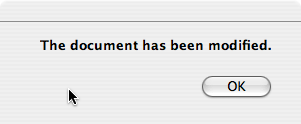
To use the property-based API, construct an instance of PySide.QtGui.QMessageBox , set the desired properties, and call exec() to show the message. The simplest configuration is to set only the message text 特性。
msgBox = QMessageBox()
msgBox.setText("The document has been modified.")
msgBox.exec_()
用户必须点击 OK button to dismiss the message box. The rest of the GUI is blocked until the message box is dismissed.
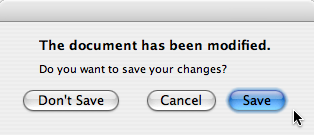
A better approach than just alerting the user to an event is to also ask the user what to do about it. Store the question in the informative text property, and set the standard buttons property to the set of buttons you want as the set of user responses. The buttons are specified by combining values from StandardButtons using the bitwise OR operator. The display order for the buttons is platform-dependent. For example, on Windows, Save is displayed to the left of Cancel , whereas on Mac OS, the order is reversed.
Mark one of your standard buttons to be your default button .
msgBox = QMessageBox()
msgBox.setText("The document has been modified.")
msgBox.setInformativeText("Do you want to save your changes?")
msgBox.setStandardButtons(QMessageBox.Save | QMessageBox.Discard | QMessageBox.Cancel)
msgBox.setDefaultButton(QMessageBox.Save)
ret = msgBox.exec_()
This is the approach recommended in the Mac OS X Guidelines. Similar guidelines apply for the other platforms, but note the different ways the informative text is handled for different platforms.
exec() slot returns the StandardButtons value of the button that was clicked.
if ret == QMessageBox.Save:
    # Save was clicked
elif ret == QMessageBox.Discard:
    # Don't save was clicked
elif ret == QMessageBox.Cancel:
    # cancel was clicked
else:
    # should never be reached
To give the user more information to help him answer the question, set the detailed text property. If the detailed text property is set, the Show Details... button will be shown.
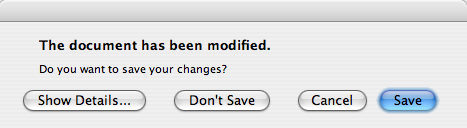
Clicking the Show Details... button displays the detailed text.
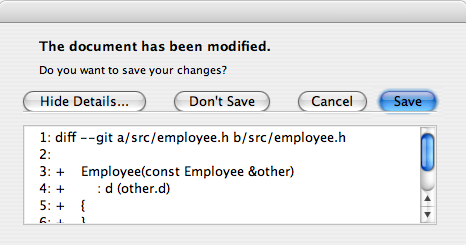
detailed text property is always interpreted as plain text. The main text and informative text properties can be either plain text or rich text. These strings are interpreted according to the setting of the text format property. The default setting is auto-text .
Note that for some plain text strings containing XML meta-characters, the auto-text rich text detection test may fail causing your plain text string to be interpreted incorrectly as rich text. In these rare cases, use Qt.convertFromPlainText() to convert your plain text string to a visually equivalent rich text string, or set the text format property explicitly with PySide.QtGui.QMessageBox.setTextFormat() .
PySide.QtGui.QMessageBox supports four predefined message severity levels, or message types, which really only differ in the predefined icon they each show. Specify one of the four predefined message types by setting the PySide.QtGui.QMessageBox.icon() property to one of the predefined icons . The following rules are guidelines:

|
询问 | For asking a question during normal operations. |

|
Information | For reporting information about normal operations. |

|
警告 | For reporting non-critical errors. |

|
Critical | For reporting critical errors. |
Predefined icons are not defined by PySide.QtGui.QMessageBox , but provided by the style. The default value is No Icon . The message boxes are otherwise the same for all cases. When using a standard icon, use the one recommended in the table, or use the one recommended by the style guidelines for your platform. If none of the standard icons is right for your message box, you can use a custom icon by setting the icon pixmap property instead of setting the PySide.QtGui.QMessageBox.icon() 特性。
In summary, to set an icon, use either PySide.QtGui.QMessageBox.setIcon() for one of the standard icons, or PySide.QtGui.QMessageBox.setIconPixmap() for a custom icon.
Building message boxes with the static functions API, although convenient, is less flexible than using the property-based API, because the static function signatures lack parameters for setting the informative text and detailed text properties. One work-around for this has been to use the title parameter as the message box main text and the text parameter as the message box informative text. Because this has the obvious drawback of making a less readable message box, platform guidelines do not recommend it. The Microsoft Windows User Interface Guidelines recommend using the application name 作为 window's title , which means that if you have an informative text in addition to your main text, you must concatenate it to the text 参数。
Note that the static function signatures have changed with respect to their button parameters, which are now used to set the standard buttons 和 default button .
Static functions are available for creating PySide.QtGui.QMessageBox.information() , PySide.QtGui.QMessageBox.question() , PySide.QtGui.QMessageBox.warning() ,和 PySide.QtGui.QMessageBox.critical() message boxes.
ret = QMessageBox.warning(self, self.tr("My Application"),
                               self.tr("The document has been modified.\n" + \
                                  "Do you want to save your changes?"),
                               QMessageBox.Save | QMessageBox.Discard
                               | QMessageBox.Cancel,
                               QMessageBox.Save)
标准对话框 example shows how to use PySide.QtGui.QMessageBox and the other built-in Qt dialogs.
若 standard buttons are not flexible enough for your message box, you can use the PySide.QtGui.QMessageBox.addButton() overload that takes a text and a ButtonRoleto to add custom buttons. The QMessageBox.ButtonRole is used by PySide.QtGui.QMessageBox to determine the ordering of the buttons on screen (which varies according to the platform). You can test the value of PySide.QtGui.QMessageBox.clickedButton() after calling exec() 。例如,
msgBox = QMessageBox()
connectButton = msgBox.addButton(self.tr("Connect"), QMessageBox.ActionRole)
abortButton = msgBox.addButton(QMessageBox.Abort)
msgBox.exec_()
if msgBox.clickedButton() == connectButton:
    # connect
elif msgBox.clickedButton() == abortButton:
    # abort
}
The default button (i.e., the button activated when Enter is pressed) can be specified using PySide.QtGui.QMessageBox.setDefaultButton() . If a default button is not specified, PySide.QtGui.QMessageBox tries to find one based on the button roles of the buttons used in the message box.
The escape button (the button activated when Esc is pressed) can be specified using PySide.QtGui.QMessageBox.setEscapeButton() . If an escape button is not specified, PySide.QtGui.QMessageBox tries to find one using these rules:
When an escape button can't be determined using these rules, pressing Esc 不起作用。
另请参阅
PySide.QtGui.QDialogButtonBox GUI Design Handbook: Message Box 标准对话框范例 应用程序范例
| 参数: |
|
|---|
Constructs a message box with no text and no buttons. parent 会被传递给 PySide.QtGui.QDialog 构造函数。
On Mac OS X, if you want your message box to appear as a Qt.Sheet of its parent , set the message box's window modality to Qt.WindowModal or use PySide.QtGui.QMessageBox.open() . Otherwise, the message box will be a standard dialog.
This enum describes the roles that can be used to describe buttons in the button box. Combinations of these roles are as flags used to describe different aspects of their behavior.
| 常量 | 描述 |
|---|---|
| QMessageBox.InvalidRole | The button is invalid. |
| QMessageBox.AcceptRole | Clicking the button causes the dialog to be accepted (e.g. OK). |
| QMessageBox.RejectRole | Clicking the button causes the dialog to be rejected (e.g. Cancel). |
| QMessageBox.DestructiveRole | Clicking the button causes a destructive change (e.g. for Discarding Changes) and closes the dialog. |
| QMessageBox.ActionRole | Clicking the button causes changes to the elements within the dialog. |
| QMessageBox.HelpRole | The button can be clicked to request help. |
| QMessageBox.YesRole | The button is a “Yes”-like button. |
| QMessageBox.NoRole | The button is a “No”-like button. |
| QMessageBox.ApplyRole | The button applies current changes. |
| QMessageBox.ResetRole | The button resets the dialog's fields to default values. |
另请参阅
QMessageBox.StandardButton
These enums describe flags for standard buttons. Each button has a defined QMessageBox.ButtonRole .
| 常量 | 描述 |
|---|---|
| QMessageBox.Ok | An “OK” button defined with the AcceptRole . |
| QMessageBox.Open | A “Open” button defined with the AcceptRole . |
| QMessageBox.Save | A “Save” button defined with the AcceptRole . |
| QMessageBox.Cancel | A “Cancel” button defined with the RejectRole . |
| QMessageBox.Close | A “Close” button defined with the RejectRole . |
| QMessageBox.Discard | A “Discard” or “Don't Save” button, depending on the platform, defined with the DestructiveRole . |
| QMessageBox.Apply | An “Apply” button defined with the ApplyRole . |
| QMessageBox.Reset | A “Reset” button defined with the ResetRole . |
| QMessageBox.RestoreDefaults | A “Restore Defaults” button defined with the ResetRole . |
| QMessageBox.Help | A “Help” button defined with the HelpRole . |
| QMessageBox.SaveAll | A “Save All” button defined with the AcceptRole . |
| QMessageBox.Yes | A “Yes” button defined with the YesRole . |
| QMessageBox.YesToAll | A “Yes to All” button defined with the YesRole . |
| QMessageBox.No | A “No” button defined with the NoRole . |
| QMessageBox.NoToAll | A “No to All” button defined with the NoRole . |
| QMessageBox.Abort | An “Abort” button defined with the RejectRole . |
| QMessageBox.Retry | A “Retry” button defined with the AcceptRole . |
| QMessageBox.Ignore | An “Ignore” button defined with the AcceptRole . |
| QMessageBox.NoButton | An invalid button. |
以下值已过时:
| 常量 | 描述 |
|---|---|
| QMessageBox.YesAll | 使用 YesToAll 代替。 |
| QMessageBox.NoAll | 使用 NoToAll 代替。 |
| QMessageBox.Default | 使用 defaultButton argument of PySide.QtGui.QMessageBox.information() , PySide.QtGui.QMessageBox.warning() , etc. instead, or call PySide.QtGui.QMessageBox.setDefaultButton() . |
| QMessageBox.Escape | 调用 PySide.QtGui.QMessageBox.setEscapeButton() 代替。 |
| QMessageBox.FlagMask | |
| QMessageBox.ButtonMask |
另请参阅
QMessageBox.ButtonRole PySide.QtGui.QMessageBox.standardButtons()
This enum has the following values:
| 常量 | 描述 |
|---|---|
| QMessageBox.NoIcon | the message box does not have any icon. |
| QMessageBox.Question | an icon indicating that the message is asking a question. |
| QMessageBox.Information | an icon indicating that the message is nothing out of the ordinary. |
| QMessageBox.Warning | an icon indicating that the message is a warning, but can be dealt with. |
| QMessageBox.Critical | an icon indicating that the message represents a critical problem. |
| 参数: |
|
|---|
Displays a simple about box with title title 和文本 text . The about box's parent is parent .
PySide.QtGui.QMessageBox.about() looks for a suitable icon in four locations:
The about box has a single button labelled “OK”. On Mac OS X, the about box is popped up as a modeless window; on other platforms, it is currently application modal.
| 参数: |
|
|---|
Displays a simple message box about Qt, with the given title and centered over parent (if parent is not 0). The message includes the version number of Qt being used by the application.
This is useful for inclusion in the Help menu of an application, as shown in the 菜单 范例。
PySide.QtGui.QApplication provides this functionality as a slot.
On Mac OS X, the about box is popped up as a modeless window; on other platforms, it is currently application modal.
| 参数: |
|
|---|---|
| 返回类型: |
这是重载函数。
Creates a button with the given text , adds it to the message box for the specified role , and returns it.
| 参数: | button – PySide.QtGui.QMessageBox.StandardButton |
|---|---|
| 返回类型: | PySide.QtGui.QPushButton |
这是重载函数。
添加标准 button to the message box if it is valid to do so, and returns the push button.
| 参数: |
|
|---|
添加给定 button to the message box with the specified role .
| 参数: | which – PySide.QtGui.QMessageBox.StandardButton |
|---|---|
| 返回类型: | PySide.QtGui.QAbstractButton |
Returns a pointer corresponding to the standard button which , or 0 if the standard button doesn't exist in this message box.
| 参数: | button – PySide.QtGui.QAbstractButton |
|---|
| 参数: | button – PySide.QtGui.QAbstractButton |
|---|---|
| 返回类型: | PySide.QtGui.QMessageBox.ButtonRole |
Returns the button role for the specified button . This function returns InvalidRole if button is 0 or has not been added to the message box.
| 返回类型: |
|---|
Returns a list of all the buttons that have been added to the message box.
| 返回类型: | PySide.QtGui.QAbstractButton |
|---|
Returns the button that was clicked by the user, or 0 if the user hit the Esc key and no escape button was set.
若 exec() hasn't been called yet, returns 0.
范例:
messageBox = QMessageBox(self)
disconnectButton = messageBox.addButton(self.tr("Disconnect"),
                                        QMessageBox.ActionRole)
...
messageBox.exec_()
if messageBox.clickedButton() == disconnectButton:
    ...
| 参数: |
|
|---|---|
| 返回类型: |
PySide.QtCore.int |
### Needed for Qt 4 source compatibility
| 参数: |
|
|---|---|
| 返回类型: |
| 返回类型: | PySide.QtGui.QPushButton |
|---|
Returns the button that should be the message box's default button . Returns 0 if no default button was set.
| 返回类型: | unicode |
|---|
This property holds the text to be displayed in the details area..
The text will be interpreted as a plain text.
默认情况下,此特性包含空字符串。
| 返回类型: | PySide.QtGui.QAbstractButton |
|---|
返回被激活按钮,当按下 Esc 键时。
默认情况下, PySide.QtGui.QMessageBox attempts to automatically detect an escape button as follows:
When an escape button could not be automatically detected, pressing Esc 不起作用。
| 返回类型: | PySide.QtGui.QMessageBox.Icon |
|---|
This property holds the message box's icon.
The icon of the message box can be specified with one of the values:
默认为 QMessageBox.NoIcon .
The pixmap used to display the actual icon depends on the current GUI style . You can also set a custom pixmap for the icon by setting the icon pixmap 特性。
| 返回类型: | PySide.QtGui.QPixmap |
|---|
This property holds the current icon.
The icon currently used by the message box. Note that it's often hard to draw one pixmap that looks appropriate in all GUI styles; you may want to supply a different pixmap for each platform.
By default, this property is undefined.
| 参数: |
|
|---|---|
| 返回类型: |
### Needed for Qt 4 source compatibility
| 参数: |
|
|---|---|
| 返回类型: |
| 返回类型: | unicode |
|---|
This property holds the informative text that provides a fuller description for the message.
Infromative text can be used to expand upon the PySide.QtGui.QMessageBox.text() to give more information to the user. On the Mac, this text appears in small system font below the PySide.QtGui.QMessageBox.text() . On other platforms, it is simply appended to the existing text.
默认情况下,此特性包含空字符串。
| 参数: |
|
|---|
这是重载函数。
打开对话框并连接其 PySide.QtGui.QDialog.finished() or PySide.QtGui.QMessageBox.buttonClicked() signal to the slot specified by receiver and member 。若槽在 member has a pointer for its first parameter the connection is to PySide.QtGui.QMessageBox.buttonClicked() , otherwise the connection is to PySide.QtGui.QDialog.finished() .
信号将断开槽连接,当对话框被关闭时。
| 参数: |
|
|---|---|
| 返回类型: |
PySide.QtCore.int |
### Needed for Qt 4 source compatibility
| 参数: |
|
|---|---|
| 返回类型: |
| 参数: | button – PySide.QtGui.QAbstractButton |
|---|
移除 button 从按钮框但不删除它。
| 参数: | button – PySide.QtGui.QPushButton |
|---|
设置消息框的 default button to button .
| 参数: | button – PySide.QtGui.QMessageBox.StandardButton |
|---|
设置消息框的 default button to button .
| 参数: | text – unicode |
|---|
This property holds the text to be displayed in the details area..
The text will be interpreted as a plain text.
默认情况下,此特性包含空字符串。
| 参数: | button – PySide.QtGui.QMessageBox.StandardButton |
|---|
Sets the buttons that gets activated when the Escape key is pressed to button .
| 参数: | button – PySide.QtGui.QAbstractButton |
|---|
Sets the button that gets activated when the Escape key is pressed to button .
| 参数: | arg__1 – PySide.QtGui.QMessageBox.Icon |
|---|
This property holds the message box's icon.
The icon of the message box can be specified with one of the values:
默认为 QMessageBox.NoIcon .
The pixmap used to display the actual icon depends on the current GUI style . You can also set a custom pixmap for the icon by setting the icon pixmap 特性。
| 参数: | pixmap – PySide.QtGui.QPixmap |
|---|
This property holds the current icon.
The icon currently used by the message box. Note that it's often hard to draw one pixmap that looks appropriate in all GUI styles; you may want to supply a different pixmap for each platform.
By default, this property is undefined.
| 参数: | text – unicode |
|---|
This property holds the informative text that provides a fuller description for the message.
Infromative text can be used to expand upon the PySide.QtGui.QMessageBox.text() to give more information to the user. On the Mac, this text appears in small system font below the PySide.QtGui.QMessageBox.text() . On other platforms, it is simply appended to the existing text.
默认情况下,此特性包含空字符串。
| 参数: | buttons – PySide.QtGui.QMessageBox.StandardButtons |
|---|
| 参数: | text – unicode |
|---|
This property holds the message box text to be displayed..
The text will be interpreted either as a plain text or as rich text, depending on the text format setting ( QMessageBox.textFormat ). The default setting is Qt.AutoText , i.e., the message box will try to auto-detect the format of the text.
The default value of this property is an empty string.
| 参数: | format – PySide.QtCore.Qt.TextFormat |
|---|
This property holds the format of the text displayed by the message box.
The current text format used by the message box. See the Qt.TextFormat 枚举了解可能选项的解释。
默认格式为 Qt.AutoText .
| 参数: | button – PySide.QtGui.QAbstractButton |
|---|---|
| 返回类型: | PySide.QtGui.QMessageBox.StandardButton |
Returns the standard button enum value corresponding to the given button ,或 NoButton 若给定 button 不是标准按钮。
| 返回类型: | PySide.QtGui.QMessageBox.StandardButtons |
|---|
| 返回类型: | unicode |
|---|
This property holds the message box text to be displayed..
The text will be interpreted either as a plain text or as rich text, depending on the text format setting ( QMessageBox.textFormat ). The default setting is Qt.AutoText , i.e., the message box will try to auto-detect the format of the text.
The default value of this property is an empty string.
| 返回类型: | PySide.QtCore.Qt.TextFormat |
|---|
This property holds the format of the text displayed by the message box.
The current text format used by the message box. See the Qt.TextFormat 枚举了解可能选项的解释。
默认格式为 Qt.AutoText .
| 参数: |
|
|---|---|
| 返回类型: |
| 参数: |
|
|---|---|
| 返回类型: |
PySide.QtCore.int |
### Needed for Qt 4 source compatibility

