QFileDialogclass provides a dialog that allow users to select files or directories. 更多 …

def
acceptMode
()
def
confirmOverwrite
()
def
defaultSuffix
()
def
directory
()
def
directoryUrl
()
def
fileMode
()
def
filter
()
def
history
()
def
iconProvider
()
def
isNameFilterDetailsVisible
()
def
isReadOnly
()
def
itemDelegate
()
def
labelText
(label)
def
mimeTypeFilters
()
def
nameFilters
()
def
open
(receiver, member)
def
options
()
def
proxyModel
()
def
resolveSymlinks
()
def
restoreState
(state)
def
saveState
()
def
selectFile
(filename)
def
selectMimeTypeFilter
(filter)
def
selectNameFilter
(filter)
def
selectUrl
(url)
def
selectedFiles
()
def
selectedMimeTypeFilter
()
def
selectedNameFilter
()
def
selectedUrls
()
def
setAcceptMode
(mode)
def
setConfirmOverwrite
(enabled)
def
setDefaultSuffix
(suffix)
def
setDirectory
(directory)
def
setDirectory
(directory)
def
setDirectoryUrl
(directory)
def
setFileMode
(mode)
def
setFilter
(filters)
def
setHistory
(paths)
def
setIconProvider
(provider)
def
setItemDelegate
(delegate)
def
setLabelText
(label, text)
def
setMimeTypeFilters
(filters)
def
setNameFilter
(filter)
def
setNameFilterDetailsVisible
(enabled)
def
setNameFilters
(filters)
def
setOption
(option[, on=true])
def
setOptions
(options)
def
setProxyModel
(model)
def
setReadOnly
(enabled)
def
setResolveSymlinks
(enabled)
def
setSidebarUrls
(urls)
def
setSupportedSchemes
(schemes)
def
setViewMode
(mode)
def
sidebarUrls
()
def
supportedSchemes
()
def
testOption
(option)
def
viewMode
()
def
currentChanged
(path)
def
currentUrlChanged
(url)
def
directoryEntered
(directory)
def
directoryUrlEntered
(directory)
def
fileSelected
(file)
def
filesSelected
(files)
def
filterSelected
(filter)
def
urlSelected
(url)
def
urlsSelected
(urls)
def
getExistingDirectory
([parent=None[, caption=””[, dir=””[, options=QFileDialog.ShowDirsOnly]]]])
def
getExistingDirectoryUrl
([parent=None[, caption=””[, dir=QUrl()[, options=QFileDialog.ShowDirsOnly[, supportedSchemes=list()]]]]])
def
getOpenFileName
([parent=None[, caption=””[, dir=””[, filter=””[, selectedFilter=””[, options=QFileDialog.Options()]]]]]])
def
getOpenFileNames
([parent=None[, caption=””[, dir=””[, filter=””[, selectedFilter=””[, options=QFileDialog.Options()]]]]]])
def
getOpenFileUrl
([parent=None[, caption=””[, dir=QUrl()[, filter=””[, selectedFilter=””[, options=QFileDialog.Options()[, supportedSchemes=list()]]]]]]])
def
getOpenFileUrls
([parent=None[, caption=””[, dir=QUrl()[, filter=””[, selectedFilter=””[, options=QFileDialog.Options()[, supportedSchemes=list()]]]]]]])
def
getSaveFileName
([parent=None[, caption=””[, dir=””[, filter=””[, selectedFilter=””[, options=QFileDialog.Options()]]]]]])
def
getSaveFileUrl
([parent=None[, caption=””[, dir=QUrl()[, filter=””[, selectedFilter=””[, options=QFileDialog.Options()[, supportedSchemes=list()]]]]]]])
def
saveFileContent
(fileContent[, fileNameHint=””])
QFileDialogclass enables a user to traverse the file system in order to select one or many files or a directory.The easiest way to create a
QFileDialogis to use the static functions.fileName = QFileDialog.getOpenFileName(self, tr("Open Image"), "/home/jana", tr("Image Files (*.png *.jpg *.bmp)"))In the above example, a modal
QFileDialogis created using a static function. The dialog initially displays the contents of the “/home/jana” directory, and displays files matching the patterns given in the string “Image Files (*.png *.jpg *.bmp)”. The parent of the file dialog is set to this , and the window title is set to “Open Image”.若希望使用多个过滤器,分隔每过滤器采用 two 分号。例如:
"Images (*.png *.xpm *.jpg);;Text files (*.txt);;XML files (*.xml)"You can create your own
QFileDialogwithout using the static functions. By callingsetFileMode(), you can specify what the user must select in the dialog:dialog = QFileDialog(self) dialog.setFileMode(QFileDialog.AnyFile)在以上范例中,文件对话框的模式被设为
AnyFile, meaning that the user can select any file, or even specify a file that doesn’t exist. This mode is useful for creating a “Save As” file dialog. UseExistingFile若用户必须选择现有文件,或Directory若只有目录可以被选择。见FileMode枚举了解模式的完整列表。
fileMode特性包含对话框的操作模式;这指示用户期望选择什么类型的对象。使用setNameFilter()to set the dialog’s file filter. For example:dialog.setNameFilter(tr("Images (*.png *.xpm *.jpg)"))在以上范例中,过滤器被设为
"Images (*.png *.xpm *.jpg)",这意味着文件具有扩展名png,xpm,或jpgwill be shown in theQFileDialog. You can apply several filters by usingsetNameFilters()。使用selectNameFilter()to select one of the filters you’ve given as the file dialog’s default filter.文件对话框有 2 种查看模式:
ListandDetail.List将当前目录内容呈现为文件和目录名称列表。Detail显示文件和目录名称列表,但每个名称旁边还提供额外信息 (譬如:文件大小和修改日期)。设置模式采用setViewMode():dialog.setViewMode(QFileDialog.Detail)当创建自己的文件对话框时需要使用的最后一个重要函数是
selectedFiles().if dialog.exec_(): fileNames = dialog.selectedFiles()在以上范例中,创建并展示模态文件对话框。若用户点击 OK,选中文件被放入
fileName.The dialog’s working directory can be set with
setDirectory(). Each file in the current directory can be selected using theselectFile()函数。标准对话框 example shows how to use
QFileDialogas well as other built-in Qt dialogs.默认情况下,若平台有一个平台本机文件对话框,将使用它。在这种情况下,原本用于构造对话框的 Widget 将不会被实例化,因此相关访问器,譬如
layout()anditemDelegate()will return null. You can set theDontUseNativeDialog选项以确保将使用基于 Widget 的实现而不是本机对话框。另请参阅
QDirQFileInfoQFileQColorDialogQFontDialog标准对话框范例 应用程序范例
QFileDialog
(
parent
,
f
)

QFileDialog([parent=None[, caption=””[, directory=””[, filter=””]]]])
- param f
WindowFlags- param parent
- param filter
unicode
- param directory
unicode
- param caption
unicode
构造文件对话框采用给定
parent
和小部件
flags
.
构造文件对话框采用给定
parent
and
caption
that initially displays the contents of the specified
directory
. The contents of the directory are filtered before being shown in the dialog, using a semicolon-separated list of filters specified by
filter
.
PySide2.QtWidgets.QFileDialog.
ViewMode

This enum describes the view mode of the file dialog; i.e. what information about each file will be displayed.
|
常量 |
描述 |
|---|---|
|
QFileDialog.Detail |
Displays an icon, a name, and details for each item in the directory. |
|
QFileDialog.List |
Displays only an icon and a name for each item in the directory. |
另请参阅
PySide2.QtWidgets.QFileDialog.
FileMode

此枚举被用于指示用户可以在文件对话框中选择什么。即:对话框将返回什么,若用户点击 OK。
|
常量 |
描述 |
|---|---|
|
QFileDialog.AnyFile |
文件的名称,无论它是否存在。 |
|
QFileDialog.ExistingFile |
单个现有文件的名称。 |
|
QFileDialog.Directory |
目录的名称。显示文件和目录两者。然而,本机 Windows 文件对话框不支持在目录选取器中显示文件。 |
|
QFileDialog.ExistingFiles |
零个或多个现有文件的名称。 |
从 Qt 4.5 起此值已过时:
|
常量 |
描述 |
|---|---|
|
QFileDialog.DirectoryOnly |
使用
|
另请参阅
PySide2.QtWidgets.QFileDialog.
AcceptMode

|
常量 |
描述 |
|---|---|
|
QFileDialog.AcceptOpen |
|
|
QFileDialog.AcceptSave |
PySide2.QtWidgets.QFileDialog.
DialogLabel

|
常量 |
描述 |
|---|---|
|
QFileDialog.LookIn |
|
|
QFileDialog.FileName |
|
|
QFileDialog.FileType |
|
|
QFileDialog.Accept |
|
|
QFileDialog.Reject |
PySide2.QtWidgets.QFileDialog.
Option

|
常量 |
描述 |
|---|---|
|
QFileDialog.ShowDirsOnly |
Only show directories in the file dialog. By default both files and directories are shown. (Valid only in the
|
|
QFileDialog.DontResolveSymlinks |
Don’t resolve symlinks in the file dialog. By default symlinks are resolved. |
|
QFileDialog.DontConfirmOverwrite |
Don’t ask for confirmation if an existing file is selected. By default confirmation is requested. |
|
QFileDialog.DontUseNativeDialog |
Don’t use the native file dialog. By default, the native file dialog is used unless you use a subclass of
|
注意
This option must be set before changing dialog properties or showing the dialog.
|
常量 |
描述 |
|---|---|
|
QFileDialog.ReadOnly |
Indicates that the model is readonly. |
|
QFileDialog.HideNameFilterDetails |
Indicates if the file name filter details are hidden or not. |
|
QFileDialog.DontUseSheet |
In previous versions of Qt, the static functions would create a sheet by default if the static function was given a parent. This is no longer supported and does nothing in Qt 4.5, The static functions will always be an application modal dialog. If you want to use sheets, use
|
|
QFileDialog.DontUseCustomDirectoryIcons |
Always use the default directory icon. Some platforms allow the user to set a different icon. Custom icon lookup cause a big performance impact over network or removable drives. Setting this will enable the
|
PySide2.QtWidgets.QFileDialog.
acceptMode
(
)

另请参阅
PySide2.QtWidgets.QFileDialog.
confirmOverwrite
(
)

bool
注意
此函数被弃用。
PySide2.QtWidgets.QFileDialog.
currentChanged
(
path
)

path – unicode
PySide2.QtWidgets.QFileDialog.
currentUrlChanged
(
url
)

url
–
QUrl
PySide2.QtWidgets.QFileDialog.
defaultSuffix
(
)

unicode
另请参阅
PySide2.QtWidgets.QFileDialog.
directory
(
)

QDir
Returns the directory currently being displayed in the dialog.
另请参阅
PySide2.QtWidgets.QFileDialog.
directoryEntered
(
directory
)

directory – unicode
PySide2.QtWidgets.QFileDialog.
directoryUrl
(
)

QUrl
Returns the url of the directory currently being displayed in the dialog.
另请参阅
PySide2.QtWidgets.QFileDialog.
directoryUrlEntered
(
directory
)

directory
–
QUrl
PySide2.QtWidgets.QFileDialog.
fileMode
(
)

另请参阅
PySide2.QtWidgets.QFileDialog.
fileSelected
(
file
)

file – unicode
PySide2.QtWidgets.QFileDialog.
filesSelected
(
文件
)

文件 – 字符串列表
PySide2.QtWidgets.QFileDialog.
filter
(
)

过滤器
Returns the filter that is used when displaying files.
另请参阅
PySide2.QtWidgets.QFileDialog.
filterSelected
(
filter
)

filter – unicode
PySide2.QtWidgets.QFileDialog.
getExistingDirectory
(
[
parent=None
[
,
caption=""
[
,
dir=""
[
,
options=QFileDialog.ShowDirsOnly
]
]
]
]
)

parent
–
QWidget
caption – unicode
dir – unicode
options
–
Options
unicode
This is a convenience static function that will return an existing directory selected by the user.
dir = QFileDialog.getExistingDirectory(self, tr("Open Directory"),
                                       "/home",
                                       QFileDialog.ShowDirsOnly
                                       | QFileDialog.DontResolveSymlinks)
This function creates a modal file dialog with the given
parent
小部件。若
parent
不是
None
,对话框将展示在父级 Widget 中心。
The dialog’s working directory is set to
dir
, and the caption is set to
caption
. Either of these may be an empty string in which case the current directory and a default caption will be used respectively.
options
自变量保持有关如何运行对话框的各种选项,见
Option
enum for more information on the flags you can pass. To ensure a native file dialog,
ShowDirsOnly
must be set.
On Windows and macOS, this static function will use the native file dialog and not a
QFileDialog
. However, the native Windows file dialog does not support displaying files in the directory chooser. You need to pass
DontUseNativeDialog
to display files using a
QFileDialog
.
On Unix/X11, the normal behavior of the file dialog is to resolve and follow symlinks. For example, if
/usr/tmp
is a symlink to
/var/tmp
, the file dialog will change to
/var/tmp
after entering
/usr/tmp
。若
options
includes
DontResolveSymlinks
, the file dialog will treat symlinks as regular directories.
On Windows, the dialog will spin a blocking modal event loop that will not dispatch any QTimers, and if
parent
不是
None
then it will position the dialog just below the parent’s title bar.
警告
Do not delete
parent
during the execution of the dialog. If you want to do this, you should create the dialog yourself using one of the
QFileDialog
构造函数。
PySide2.QtWidgets.QFileDialog.
getExistingDirectoryUrl
(
[
parent=None
[
,
caption=""
[
,
dir=QUrl()
[
,
options=QFileDialog.ShowDirsOnly
[
,
supportedSchemes=list()
]
]
]
]
]
)

parent
–
QWidget
caption – unicode
dir
–
QUrl
options
–
Options
supportedSchemes – 字符串列表
QUrl
This is a convenience static function that will return an existing directory selected by the user. If the user presses Cancel, it returns an empty url.
函数的用法类似于
getExistingDirectory()
. In particular
parent
,
caption
,
dir
and
options
以准确相同方式被使用。
The main difference with
getExistingDirectory()
comes from the ability offered to the user to select a remote directory. That’s why the return type and the type of
dir
is
QUrl
.
supportedSchemes
argument allows to restrict the type of URLs the user will be able to select. It is a way for the application to declare the protocols it will support to fetch the file content. An empty list means that no restriction is applied (the default). Supported for local files (“file” scheme) is implicit and always enabled; it is not necessary to include it in the restriction.
When possible, this static function will use the native file dialog and not a
QFileDialog
. On platforms which don’t support selecting remote files, Qt will allow to select only local files.
PySide2.QtWidgets.QFileDialog.
getOpenFileName
(
[
parent=None
[
,
caption=""
[
,
dir=""
[
,
filter=""
[
,
selectedFilter=""
[
,
options=QFileDialog.Options()
]
]
]
]
]
]
)

parent
–
QWidget
caption – unicode
dir – unicode
filter – unicode
selectedFilter – unicode
options
–
Options
(fileName, selectedFilter)
This is a convenience static function that returns an existing file selected by the user. If the user presses Cancel, it returns a null string.
fileName = QFileDialog.getOpenFileName(self, tr("Open File"),
                                       "/home",
                                       tr("Images (*.png *.xpm *.jpg)"))
The function creates a modal file dialog with the given
parent
小部件。若
parent
不是
None
,对话框将展示在父级 Widget 中心。
The file dialog’s working directory will be set to
dir
。若
dir
includes a file name, the file will be selected. Only files that match the given
filter
才被展示。选中过滤器被设为
selectedFilter
。参数
dir
,
selectedFilter
,和
filter
may be empty strings. If you want multiple filters, separate them with ‘;;’, for example:
"Images (*.png *.xpm *.jpg);;Text files (*.txt);;XML files (*.xml)"
options
自变量保持有关如何运行对话框的各种选项,见
Option
枚举了解可以传递标志的更多有关信息。
The dialog’s caption is set to
caption
。若
caption
is not specified then a default caption will be used.
在 Windows 和 macOS,此静态函数将使用本机文件对话框而不是
QFileDialog
.
On Windows the dialog will spin a blocking modal event loop that will not dispatch any QTimers, and if
parent
不是
None
then it will position the dialog just below the parent’s title bar.
On Unix/X11, the normal behavior of the file dialog is to resolve and follow symlinks. For example, if
/usr/tmp
is a symlink to
/var/tmp
, the file dialog will change to
/var/tmp
after entering
/usr/tmp
。若
options
includes
DontResolveSymlinks
, the file dialog will treat symlinks as regular directories.
警告
Do not delete
parent
during the execution of the dialog. If you want to do this, you should create the dialog yourself using one of the
QFileDialog
构造函数。
PySide2.QtWidgets.QFileDialog.
getOpenFileNames
(
[
parent=None
[
,
caption=""
[
,
dir=""
[
,
filter=""
[
,
selectedFilter=""
[
,
options=QFileDialog.Options()
]
]
]
]
]
]
)

parent
–
QWidget
caption – unicode
dir – unicode
filter – unicode
selectedFilter – unicode
options
–
Options
(fileNames, selectedFilter)
This is a convenience static function that will return one or more existing files selected by the user.
files = QFileDialog.getOpenFileNames(self,
                                     "Select one or more files to open",
                                     "/home",
                                     "Images (*.png *.xpm *.jpg)")
This function creates a modal file dialog with the given
parent
小部件。若
parent
不是
None
,对话框将展示在父级 Widget 中心。
The file dialog’s working directory will be set to
dir
。若
dir
includes a file name, the file will be selected. The filter is set to
filter
so that only those files which match the filter are shown. The filter selected is set to
selectedFilter
。参数
dir
,
selectedFilter
and
filter
may be empty strings. If you need multiple filters, separate them with ‘;;’, for instance:
"Images (*.png *.xpm *.jpg);;Text files (*.txt);;XML files (*.xml)"
The dialog’s caption is set to
caption
。若
caption
is not specified then a default caption will be used.
在 Windows 和 macOS,此静态函数将使用本机文件对话框而不是
QFileDialog
.
On Windows the dialog will spin a blocking modal event loop that will not dispatch any QTimers, and if
parent
不是
None
then it will position the dialog just below the parent’s title bar.
On Unix/X11, the normal behavior of the file dialog is to resolve and follow symlinks. For example, if
/usr/tmp
is a symlink to
/var/tmp
, the file dialog will change to
/var/tmp
after entering
/usr/tmp
。
options
自变量保持有关如何运行对话框的各种选项,见
Option
枚举了解可以传递标志的更多有关信息。
警告
Do not delete
parent
during the execution of the dialog. If you want to do this, you should create the dialog yourself using one of the
QFileDialog
构造函数。
PySide2.QtWidgets.QFileDialog.
getOpenFileUrl
(
[
parent=None
[
,
caption=""
[
,
dir=QUrl()
[
,
filter=""
[
,
selectedFilter=""
[
,
options=QFileDialog.Options()
[
,
supportedSchemes=list()
]
]
]
]
]
]
]
)

parent
–
QWidget
caption – unicode
dir
–
QUrl
filter – unicode
selectedFilter – unicode
options
–
Options
supportedSchemes – 字符串列表
(fileName, selectedFilter)
This is a convenience static function that returns an existing file selected by the user. If the user presses Cancel, it returns an empty url.
函数的用法类似于
getOpenFileName()
. In particular
parent
,
caption
,
dir
,
filter
,
selectedFilter
and
options
以准确相同方式被使用。
The main difference with
getOpenFileName()
comes from the ability offered to the user to select a remote file. That’s why the return type and the type of
dir
is
QUrl
.
supportedSchemes
argument allows to restrict the type of URLs the user will be able to select. It is a way for the application to declare the protocols it will support to fetch the file content. An empty list means that no restriction is applied (the default). Supported for local files (“file” scheme) is implicit and always enabled; it is not necessary to include it in the restriction.
When possible, this static function will use the native file dialog and not a
QFileDialog
. On platforms which don’t support selecting remote files, Qt will allow to select only local files.
PySide2.QtWidgets.QFileDialog.
getOpenFileUrls
(
[
parent=None
[
,
caption=""
[
,
dir=QUrl()
[
,
filter=""
[
,
selectedFilter=""
[
,
options=QFileDialog.Options()
[
,
supportedSchemes=list()
]
]
]
]
]
]
]
)

parent
–
QWidget
caption – unicode
dir
–
QUrl
filter – unicode
selectedFilter – unicode
options
–
Options
supportedSchemes – 字符串列表
(fileName, selectedFilter)
This is a convenience static function that will return one or more existing files selected by the user. If the user presses Cancel, it returns an empty list.
函数的用法类似于
getOpenFileNames()
. In particular
parent
,
caption
,
dir
,
filter
,
selectedFilter
and
options
以准确相同方式被使用。
The main difference with
getOpenFileNames()
comes from the ability offered to the user to select remote files. That’s why the return type and the type of
dir
are respectively
QList
<
QUrl
> and
QUrl
.
supportedSchemes
argument allows to restrict the type of URLs the user will be able to select. It is a way for the application to declare the protocols it will support to fetch the file content. An empty list means that no restriction is applied (the default). Supported for local files (“file” scheme) is implicit and always enabled; it is not necessary to include it in the restriction.
When possible, this static function will use the native file dialog and not a
QFileDialog
. On platforms which don’t support selecting remote files, Qt will allow to select only local files.
PySide2.QtWidgets.QFileDialog.
getSaveFileName
(
[
parent=None
[
,
caption=""
[
,
dir=""
[
,
filter=""
[
,
selectedFilter=""
[
,
options=QFileDialog.Options()
]
]
]
]
]
]
)

parent
–
QWidget
caption – unicode
dir – unicode
filter – unicode
selectedFilter – unicode
options
–
Options
(fileName, selectedFilter)
这是将返回用户选择文件名的方便静态函数。文件不必存在。
它创建模态文件对话框采用给定
parent
小部件。若
parent
不是
None
,对话框将展示在父级 Widget 中心。
fileName = QFileDialog.getSaveFileName(self, tr("Save F:xile"),
                                       "/home/jana/untitled.png",
                                       tr("Images (*.png *.xpm *.jpg)"))
The file dialog’s working directory will be set to
dir
。若
dir
包括文件名,文件将被选中。文件匹配
filter
才被展示。选中过滤器被设为
selectedFilter
。参数
dir
,
selectedFilter
,和
filter
may be empty strings. Multiple filters are separated with ‘;;’. For instance:
"Images (*.png *.xpm *.jpg);;Text files (*.txt);;XML files (*.xml)"
options
自变量保持有关如何运行对话框的各种选项,见
Option
枚举了解可以传递标志的更多有关信息。
可以选取默认过滤器通过设置
selectedFilter
到期望值。
The dialog’s caption is set to
caption
。若
caption
未指定,将使用默认标题。
在 Windows 和 macOS,此静态函数将使用本机文件对话框而不是
QFileDialog
.
On Windows the dialog will spin a blocking modal event loop that will not dispatch any QTimers, and if
parent
不是
None
then it will position the dialog just below the parent’s title bar. On macOS, with its native file dialog, the filter argument is ignored.
On Unix/X11, the normal behavior of the file dialog is to resolve and follow symlinks. For example, if
/usr/tmp
is a symlink to
/var/tmp
, the file dialog will change to
/var/tmp
after entering
/usr/tmp
。若
options
includes
DontResolveSymlinks
the file dialog will treat symlinks as regular directories.
警告
Do not delete
parent
during the execution of the dialog. If you want to do this, you should create the dialog yourself using one of the
QFileDialog
构造函数。
PySide2.QtWidgets.QFileDialog.
getSaveFileUrl
(
[
parent=None
[
,
caption=""
[
,
dir=QUrl()
[
,
filter=""
[
,
selectedFilter=""
[
,
options=QFileDialog.Options()
[
,
supportedSchemes=list()
]
]
]
]
]
]
]
)

parent
–
QWidget
caption – unicode
dir
–
QUrl
filter – unicode
selectedFilter – unicode
options
–
Options
supportedSchemes – 字符串列表
(fileName, selectedFilter)
这是返回用户选择文件的方便静态函数。文件不必存在。若用户按下 Cancel,返回空 URL。
函数的用法类似于
getSaveFileName()
. In particular
parent
,
caption
,
dir
,
filter
,
selectedFilter
and
options
以准确相同方式被使用。
The main difference with
getSaveFileName()
comes from the ability offered to the user to select a remote file. That’s why the return type and the type of
dir
is
QUrl
.
supportedSchemes
argument allows to restrict the type of URLs the user will be able to select. It is a way for the application to declare the protocols it will support to save the file content. An empty list means that no restriction is applied (the default). Supported for local files (“file” scheme) is implicit and always enabled; it is not necessary to include it in the restriction.
When possible, this static function will use the native file dialog and not a
QFileDialog
. On platforms which don’t support selecting remote files, Qt will allow to select only local files.
PySide2.QtWidgets.QFileDialog.
history
(
)

字符串列表
以路径列表形式返回文件对话框的浏览历史。
另请参阅
PySide2.QtWidgets.QFileDialog.
iconProvider
(
)

返回文件对话框使用的图标提供程序。
另请参阅
PySide2.QtWidgets.QFileDialog.
isNameFilterDetailsVisible
(
)

bool
注意
此函数被弃用。
PySide2.QtWidgets.QFileDialog.
isReadOnly
(
)

bool
PySide2.QtWidgets.QFileDialog.
itemDelegate
(
)

返回用于在文件对话框视图中呈现项的项委托。
另请参阅
PySide2.QtWidgets.QFileDialog.
labelText
(
label
)

label
–
DialogLabel
unicode
返回文件对话框展示的文本在指定
label
.
另请参阅
PySide2.QtWidgets.QFileDialog.
mimeTypeFilters
(
)

字符串列表
返回在此文件对话框中运转的 MIME 类型过滤器。
另请参阅
PySide2.QtWidgets.QFileDialog.
nameFilters
(
)

字符串列表
返回在此文件对话框中运转的文件类型过滤器。
另请参阅
PySide2.QtWidgets.QFileDialog.
open
(
receiver
,
member
)

receiver
–
QObject
member – str
This function connects one of its signals to the slot specified by
receiver
and
member
. The specific signal depends is
filesSelected()
if
fileMode
is
ExistingFiles
and
fileSelected()
if
fileMode
is anything else.
信号将断开槽连接,当对话框被关闭时。
PySide2.QtWidgets.QFileDialog.
options
(
)

Options
另请参阅
PySide2.QtWidgets.QFileDialog.
proxyModel
(
)

QAbstractProxyModel
Returns the proxy model used by the file dialog. By default no proxy is set.
另请参阅
PySide2.QtWidgets.QFileDialog.
resolveSymlinks
(
)

bool
注意
此函数被弃用。
另请参阅
PySide2.QtWidgets.QFileDialog.
restoreState
(
state
)

state
–
QByteArray
bool
Restores the dialogs’s layout, history and current directory to the
state
指定。
通常,这用于结合
QSettings
to restore the size from a past session.
返回
false
若有错误
PySide2.QtWidgets.QFileDialog.
saveFileContent
(
fileContent
[
,
fileNameHint=""
]
)

fileContent
–
QByteArray
fileNameHint – unicode
This is a convenience static function that saves
fileContent
to a file, using a file name and location chosen by the user.
fileNameHint
can be provided to suggest a file name to the user.
This function is used to save files to the local file system on Qt for WebAssembly, where the web sandbox places restrictions on how such access may happen. Its implementation will make the browser display a native file dialog, where the user makes the file selection.
It can also be used on other platforms, where it will fall back to using
QFileDialog
.
The function is asynchronous and returns immediately.
QByteArray imageData; // obtained from e.g. QImage::save()
QFileDialog::saveFile("myimage.png", imageData);
PySide2.QtWidgets.QFileDialog.
saveState
(
)

QByteArray
Saves the state of the dialog’s layout, history and current directory.
通常,这用于结合
QSettings
to remember the size for a future session. A version number is stored as part of the data.
PySide2.QtWidgets.QFileDialog.
selectFile
(
filename
)

filename – unicode
选择给定
filename
在文件对话框。
另请参阅
PySide2.QtWidgets.QFileDialog.
selectMimeTypeFilter
(
filter
)

filter – unicode
设置当前 MIME 类型
filter
.
PySide2.QtWidgets.QFileDialog.
selectNameFilter
(
filter
)

filter – unicode
设置当前文件类型
filter
. Multiple filters can be passed in
filter
by separating them with semicolons or spaces.
PySide2.QtWidgets.QFileDialog.
selectUrl
(
url
)

url
–
QUrl
选择给定
url
在文件对话框。
注意
非本机
QFileDialog
仅支持本地文件。
另请参阅
PySide2.QtWidgets.QFileDialog.
selectedFiles
(
)

字符串列表
Returns a list of strings containing the absolute paths of the selected files in the dialog. If no files are selected, or the mode is not
ExistingFiles
or
ExistingFile
, contains the current path in the viewport.
PySide2.QtWidgets.QFileDialog.
selectedMimeTypeFilter
(
)

unicode
Returns The mimetype of the file that the user selected in the file dialog.
PySide2.QtWidgets.QFileDialog.
selectedNameFilter
(
)

unicode
Returns the filter that the user selected in the file dialog.
另请参阅
PySide2.QtWidgets.QFileDialog.
selectedUrls
(
)

Returns a list of urls containing the selected files in the dialog. If no files are selected, or the mode is not
ExistingFiles
or
ExistingFile
, contains the current path in the viewport.
PySide2.QtWidgets.QFileDialog.
setAcceptMode
(
mode
)

mode
–
AcceptMode
另请参阅
PySide2.QtWidgets.QFileDialog.
setConfirmOverwrite
(
enabled
)

enabled
–
bool
注意
此函数被弃用。
另请参阅
PySide2.QtWidgets.QFileDialog.
setDefaultSuffix
(
suffix
)

suffix – unicode
另请参阅
PySide2.QtWidgets.QFileDialog.
setDirectory
(
directory
)

directory
–
QDir
PySide2.QtWidgets.QFileDialog.
setDirectory
(
directory
)

directory – unicode
PySide2.QtWidgets.QFileDialog.
setDirectoryUrl
(
directory
)

directory
–
QUrl
Sets the file dialog’s current
directory
url.
注意
非本机
QFileDialog
仅支持本地文件。
注意
On Windows, it is possible to pass URLs representing one of the
virtual folders
, such as “Computer” or “Network”. This is done by passing a
QUrl
using the scheme
clsid
followed by the CLSID value with the curly braces removed. For example the URL
clsid:374DE290-123F-4565-9164-39C4925E467B
denotes the download location. For a complete list of possible values, see the MSDN documentation on
KNOWNFOLDERID
. This feature was added in Qt 5.5.
另请参阅
PySide2.QtWidgets.QFileDialog.
setFilter
(
filters
)

filters
–
过滤器
Sets the filter used by the model to
filters
. The filter is used to specify the kind of files that should be shown.
另请参阅
PySide2.QtWidgets.QFileDialog.
setHistory
(
paths
)

paths – 字符串列表
Sets the browsing history of the filedialog to contain the given
paths
.
另请参阅
PySide2.QtWidgets.QFileDialog.
setIconProvider
(
provider
)

provider
–
QFileIconProvider
Sets the icon provider used by the filedialog to the specified
provider
.
另请参阅
PySide2.QtWidgets.QFileDialog.
setItemDelegate
(
delegate
)

delegate
–
QAbstractItemDelegate
Sets the item delegate used to render items in the views in the file dialog to the given
delegate
.
警告
You should not share the same instance of a delegate between views. Doing so can cause incorrect or unintuitive editing behavior since each view connected to a given delegate may receive the
closeEditor()
signal, and attempt to access, modify or close an editor that has already been closed.
Note that the model used is
QFileSystemModel
. It has custom item data roles, which is described by the
Roles
enum. You can use a
QFileIconProvider
if you only want custom icons.
PySide2.QtWidgets.QFileDialog.
setLabelText
(
label
,
text
)

label
–
DialogLabel
text – unicode
设置
text
shown in the filedialog in the specified
label
.
另请参阅
PySide2.QtWidgets.QFileDialog.
setMimeTypeFilters
(
filters
)

filters – 字符串列表
设置
filters
以用于文件对话框,从 MIME 类型列表。
Convenience method for
setNameFilters()
. Uses
QMimeType
to create a name filter from the glob patterns and description defined in each MIME type.
Use application/octet-stream for the “All files (*)” filter, since that is the base MIME type for all files.
Calling overrides any previously set name filters, and changes the return value of
nameFilters()
.
QStringList mimeTypeFilters({"image/jpeg", // will show "JPEG image (*.jpeg *.jpg *.jpe)
                             "image/png",  // will show "PNG image (*.png)"
                             "application/octet-stream" // will show "All files (*)"
                            });
QFileDialog dialog(this);
dialog.setMimeTypeFilters(mimeTypeFilters);
dialog.exec();
另请参阅
PySide2.QtWidgets.QFileDialog.
setNameFilter
(
filter
)

filter – unicode
Sets the filter used in the file dialog to the given
filter
.
若
filter
contains a pair of parentheses containing one or more filename-wildcard patterns, separated by spaces, then only the text contained in the parentheses is used as the filter. This means that these calls are all equivalent:
dialog.setNameFilter("All C++ files (*.cpp *.cc *.C *.cxx *.c++)")
dialog.setNameFilter("*.cpp *.cc *.C *.cxx *.c++")
注意
This is not supported on Android’s native file dialog. Use
setMimeTypeFilters()
代替。
PySide2.QtWidgets.QFileDialog.
setNameFilterDetailsVisible
(
enabled
)

enabled
–
bool
注意
此函数被弃用。
PySide2.QtWidgets.QFileDialog.
setNameFilters
(
filters
)

filters – 字符串列表
设置
filters
used in the file dialog.
Note that the filter
*.*
is not portable, because the historical assumption that the file extension determines the file type is not consistent on every operating system. It is possible to have a file with no dot in its name (for example,
Makefile
). In a native Windows file dialog,
*.*
will match such files, while in other types of file dialogs it may not. So it is better to use
*
if you mean to select any file.
filters = QStringList()
filters << "Image files (*.png *.xpm *.jpg)"
        << "Text files (*.txt)"
        << "Any files (*)"
dialog = QFileDialog(this)
dialog.setNameFilters(filters)
dialog.exec_()
setMimeTypeFilters()
has the advantage of providing all possible name filters for each file type. For example, JPEG images have three possible extensions; if your application can open such files, selecting the
image/jpeg
mime type as a filter will allow you to open all of them.
注意
This is not supported on Android’s native file dialog. Use
setMimeTypeFilters()
代替。
另请参阅
PySide2.QtWidgets.QFileDialog.
setOption
(
option
[
,
on=true
]
)

option
–
Option
on
–
bool
设置给定
option
to be enabled if
on
is true; otherwise, clears the given
option
.
Options (particularly the DontUseNativeDialogs option) should be set before changing dialog properties or showing the dialog.
Setting options while the dialog is visible is not guaranteed to have an immediate effect on the dialog (depending on the option and on the platform).
Setting options after changing other properties may cause these values to have no effect.
另请参阅
options
testOption()
PySide2.QtWidgets.QFileDialog.
setProxyModel
(
model
)

model
–
QAbstractProxyModel
Sets the model for the views to the given
proxyModel
. This is useful if you want to modify the underlying model; for example, to add columns, filter data or add drives.
Any existing proxy model will be removed, but not deleted. The file dialog will take ownership of the
proxyModel
.
另请参阅
PySide2.QtWidgets.QFileDialog.
setReadOnly
(
enabled
)

enabled
–
bool
另请参阅
PySide2.QtWidgets.QFileDialog.
setResolveSymlinks
(
enabled
)

enabled
–
bool
注意
此函数被弃用。
另请参阅
PySide2.QtWidgets.QFileDialog.
setSidebarUrls
(
urls
)

urls –
设置
urls
位于侧边栏中。
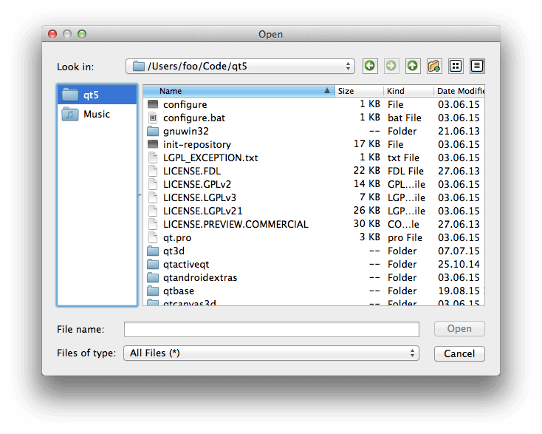
例如:
QList<QUrl> urls;
urls << QUrl::fromLocalFile("/Users/foo/Code/qt5")
     << QUrl::fromLocalFile(QStandardPaths::standardLocations(QStandardPaths::MusicLocation).first());
QFileDialog dialog;
dialog.setSidebarUrls(urls);
dialog.setFileMode(QFileDialog::AnyFile);
if(dialog.exec()) {
    // ...
}
文件对话框看起来就像这样:
另请参阅
PySide2.QtWidgets.QFileDialog.
setSupportedSchemes
(
schemes
)

schemes – 字符串列表
另请参阅
返回目前在侧边栏中的 URL 列表
另请参阅
PySide2.QtWidgets.QFileDialog.
supportedSchemes
(
)

字符串列表
PySide2.QtWidgets.QFileDialog.
testOption
(
option
)

option
–
Option
bool
返回
true
若给定
option
被启用;否则,返回 false。
另请参阅
options
setOption()
PySide2.QtWidgets.QFileDialog.
urlSelected
(
url
)

url
–
QUrl
PySide2.QtWidgets.QFileDialog.
urlsSelected
(
urls
)

urls –
PySide2.QtWidgets.QFileDialog.
viewMode
(
)

另请参阅
