from PySide2.QtCore import Qt, QFile, QFileInfo, QSettings, QTextStream
from PySide2.QtGui import QIcon
from PySide2.Widgets import (QAction, QApplication, QFileDialog, QMainWindow,
                             QPlainTextEdit, QFileDialog, QMessageBox, )
We start by including
<QtWidgets>
, a header file that contains the definition of all classes in the Qt Core, Qt GUI and Qt Widgets modules. This saves us from the trouble of having to include every class individually. We also include
mainwindow.h
.
You might wonder why we don’t include
<QtWidgets>
in
mainwindow.h
and be done with it. The reason is that including such a large header from another header file can rapidly degrade performances. Here, it wouldn’t do any harm, but it’s still generally a good idea to include only the header files that are strictly necessary from another header file.
def __init__(self, parent=None):
    QMainWindow.__init__(self)
    self.textEdit =  QPlainTextEdit()
    self.setCentralWidget(textEdit)
    self.createActions()
    self.createMenus()
    self.createToolBars()
    self.createStatusBar()
    self.readSettings()
    self.textEdit.document().contentsChanged.connect(self.documentWasModified)
    self.setCurrentFile("")
    self.setUnifiedTitleAndToolBarOnMac(True)
In the constructor, we start by creating a
QPlainTextEdit
widget as a child of the main window (the
this
object). Then we call
setCentralWidget()
to tell that this is going to be the widget that occupies the central area of the main window, between the toolbars and the status bar.
Then we call
createActions()
and
createStatusBar()
, two private functions that set up the user interface. After that, we call
readSettings()
to restore the user’s preferences.
We establish a signal-slot connection between the
QPlainTextEdit
‘s document object and our
documentWasModified()
slot. Whenever the user modifies the text in the
QPlainTextEdit
, we want to update the title bar to show that the file was modified.
At the end, we set the window title using the private
setCurrentFile()
function. We’ll come back to this later.
def closeEvent(self, event):
    if maybeSave():
        writeSettings()
        event.accept()
    else:
        event.ignore()
When the user attempts to close the window, we call the private function
maybeSave()
to give the user the possibility to save pending changes. The function returns true if the user wants the application to close; otherwise, it returns false. In the first case, we save the user’s preferences to disk and accept the close event; in the second case, we ignore the close event, meaning that the application will stay up and running as if nothing happened.
def File(self):
    if maybeSave():
        textEdit.clear()
        setCurrentFile("")
newFile()
slot is invoked when the user selects File|New from the menu. We call
maybeSave()
to save any pending changes and if the user accepts to go on, we clear the
QPlainTextEdit
and call the private function
setCurrentFile()
to update the window title and clear the
windowModified
标志。
def open(self):
    if maybeSave():
        fileName = QFileDialog.getOpenFileName(self)
        if not fileName.isEmpty():
            loadFile(fileName)
open()
slot is invoked when the user clicks File|Open. We pop up a
QFileDialog
asking the user to choose a file. If the user chooses a file (i.e.,
fileName
is not an empty string), we call the private function
loadFile()
to actually load the file.
def save(self):
    if curFile.isEmpty():
        return saveAs()
    else:
        return saveFile(curFile)
save()
slot is invoked when the user clicks File|Save. If the user hasn’t provided a name for the file yet, we call
saveAs()
; otherwise, we call the private function
saveFile()
to actually save the file.
def saveAs(self):
    fileName = QFileDialog.getSaveFileName(self)
    if fileName.isEmpty():
        return False
    return saveFile(fileName)
在
saveAs()
, we start by popping up a
QFileDialog
asking the user to provide a name. If the user clicks Cancel, the returned file name is empty, and we do nothing.
def about(self):
   QMessageBox.about(self, tr("About Application"),
            tr("The <b>Application</b> example demonstrates how to "
               "write modern GUI applications using Qt, with a menu bar, "
               "toolbars, and a status bar."))
The application’s About box is done using one statement, using the
about()
static function and relying on its support for an HTML subset.
tr()
call around the literal string marks the string for translation. It is a good habit to call
tr()
on all user-visible strings, in case you later decide to translate your application to other languages. The Internationalization with Qt overview covers
tr()
in more detail.
def documentWasModified(self):
    setWindowModified(textEdit.document().isModified())
documentWasModified()
slot is invoked each time the text in the
QPlainTextEdit
changes because of user edits. We call
setWindowModified()
to make the title bar show that the file was modified. How this is done varies on each platform.
def MainWindow.createActions(self):
    Act = QAction(QIcon(":/images/new.png"), tr("&New"), self)
    Act.setShortcuts(QKeySequence.New)
    Act.setStatusTip(tr("Create a new file"))
    Act.triggered.connect(newFile)
    openAct = QAction(QIcon(":/images/open.png"), tr("&Open..."), self)
    openAct.setShortcuts(QKeySequence.Open)
    openAct.setStatusTip(tr("Open an existing file"))
    openAct.triggered.connect(open)
    ...
    aboutQtAct =  QAction(tr("About &Qt"), self)
    aboutQtAct.setStatusTip(tr("Show the Qt library's About box"))
    aboutQtAct.triggered.connect(qApp.aboutQt)
createActions()
private function, which is called from the
MainWindow
constructor, creates
QAction
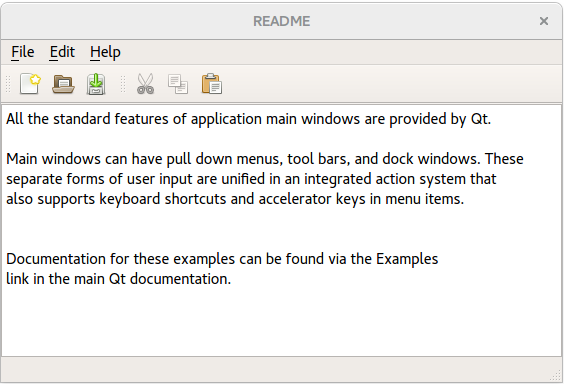
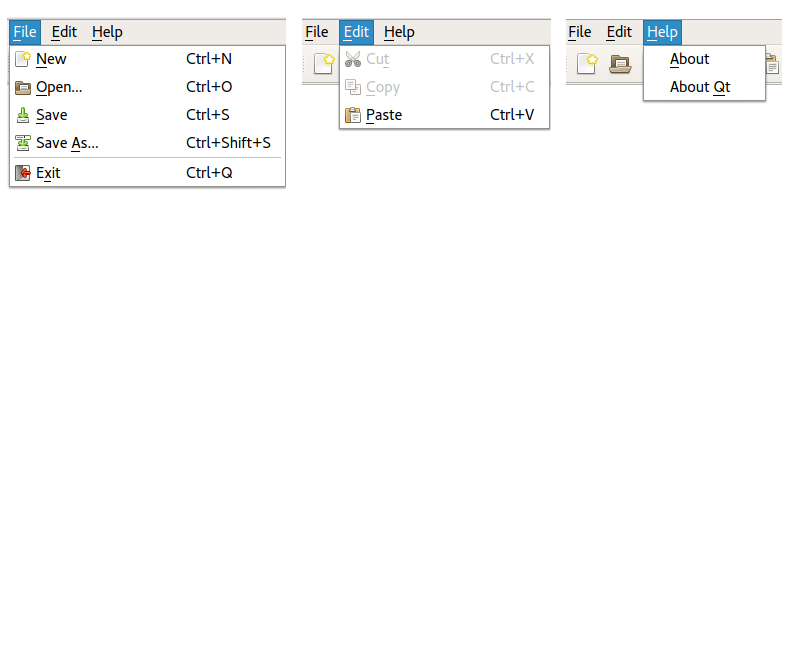
s and populates the menus and two toolbars. The code is very repetitive, so we show only the actions corresponding to File|New, File|Open, and Help|About Qt.
A
QAction
is an object that represents one user action, such as saving a file or invoking a dialog. An action can be put in a
QMenu
或
QToolBar
, or both, or in any other widget that reimplements
actionEvent()
.
An action has a text that is shown in the menu, an icon, a shortcut key, a tooltip, a status tip (shown in the status bar), a “What’s This?” text, and more. It emits a
triggered()
signal whenever the user invokes the action (e.g., by clicking the associated menu item or toolbar button).
Instances of
QAction
can be created by passing a parent
QObject
or by using one of the convenience functions of
QMenu
,
QMenuBar
or
QToolBar
. We create the actions that are in a menu as well as in a toolbar parented on the window to prevent ownership issues. For actions that are only in the menu, we use the convenience function
addAction()
, which allows us to pass text, icon and the target object and its slot member function.
Creating toolbars is very similar to creating menus. The same actions that we put in the menus can be reused in the toolbars. After creating the action, we add it to the toolbar using
addAction()
.
The code above contains one more idiom that must be explained. For some of the actions, we specify an icon as a
QIcon
到
QAction
constructor. We use
fromTheme()
to obtain the correct standard icon from the underlying window system. If that fails due to the platform not supporting it, we pass a file name as fallback. Here, the file name starts with
:
. Such file names aren’t ordinary file names, but rather path in the executable’s stored resources. We’ll come back to this when we review the
application.qrc
file that’s part of the project.
    cutAct.setEnabled(False)
    copyAct.setEnabled(False)
    textEdit.copyAvailable[bool].connect(cutAct.setEnabled)
    textEdit.copyAvailable[bool].connect(copyAct.setEnabled)
}
The Edit|Cut and Edit|Copy actions must be available only when the
QPlainTextEdit
contains selected text. We disable them by default and connect the
copyAvailable()
signal to the
setEnabled()
slot, ensuring that the actions are disabled when the text editor has no selection.
Just before we create the Help menu, we call
addSeparator()
. This has no effect for most widget styles (e.g., Windows and macOS styles), but for some styles this makes sure that Help is pushed to the right side of the menu bar.
def createStatusBar(self):
    statusBar().showMessage(tr("Ready"))
statusBar()
returns a pointer to the main window’s
QStatusBar
widget. Like with
menuBar()
, the widget is automatically created the first time the function is called.
def readSettings(self):
    settings("Trolltech", "Application Example")
    pos = settings.value("pos", QPoint(200, 200)).toPoint()
    size = settings.value("size", QSize(400, 400)).toSize()
    resize(size)
    move(pos)
readSettings()
function is called from the constructor to load the user’s preferences and other application settings. The
QSettings
class provides a high-level interface for storing settings permanently on disk. On Windows, it uses the (in)famous Windows registry; on macOS, it uses the native XML-based CFPreferences API; on Unix/X11, it uses text files.
QSettings
constructor takes arguments that identify your company and the name of the product. This ensures that the settings for different applications are kept separately.
使用
value()
to extract the value of the geometry setting. The second argument to
value()
is optional and specifies a default value for the setting if there exists none. This value is used the first time the application is run.
使用
saveGeometry()
and Widget::restoreGeometry() to save the position. They use an opaque
QByteArray
to store screen number, geometry and window state.
def writeSettings(self):
    settings = QSettings("Trolltech", "Application Example")
    settings.setValue("pos", pos())
    settings.setValue("size", size())
writeSettings()
function is called from
closeEvent()
. Writing settings is similar to reading them, except simpler. The arguments to the
QSettings
constructor must be the same as in
readSettings()
.
def maybeSave(self):
    if textEdit.document()->isModified():
        ret = QMessageBox.warning(self, tr("Application"),
                                  tr("The document has been modified.\n"
                                     "Do you want to save your changes?"),
                                 QMessageBox.Save | QMessageBox.Discard | QMessageBox.Cancel)
        if ret == QMessageBox.Save:
            return save()
        elif ret == QMessageBox.Cancel:
            return False
    return True
maybeSave()
function is called to save pending changes. If there are pending changes, it pops up a
QMessageBox
giving the user to save the document. The options are
Yes
,
No
,和
Cancel
. The Yes button is made the default button (the button that is invoked when the user presses Return) using the
默认
flag; the Cancel button is made the escape button (the button that is invoked when the user presses Esc) using the
Escape
标志。
maybeSave()
function returns
true
in all cases, except when the user clicks Cancel or saving the file fails. The caller must check the return value and stop whatever it was doing if the return value is
false
.
def loadFile(self, fileName):
    file = QFile(fileName)
    if !file.open(QFile.ReadOnly | QFile.Text):
        QMessageBox.warning(self, tr("Application"), tr("Cannot read file "
            "{}:\n{}.".format(fileName, file.errorString())))
        return
    in = QTextStream(file)
    QApplication.setOverrideCursor(Qt::WaitCursor)
    textEdit.setPlainText(in.readAll())
    QApplication.restoreOverrideCursor()
    self.setCurrentFile(fileName)
    self.statusBar().showMessage(tr("File loaded"), 2000)
在
loadFile()
, we use
QFile
and
QTextStream
to read in the data. The
QFile
object provides access to the bytes stored in a file.
We start by opening the file in read-only mode. The
文本
flag indicates that the file is a text file, not a binary file. On Unix and macOS, this makes no difference, but on Windows, it ensures that the “\r\n” end-of-line sequence is converted to “\n” when reading.
If we successfully opened the file, we use a
QTextStream
object to read in the data.
QTextStream
automatically converts the 8-bit data into a Unicode
QString
and supports various encodings. If no encoding is specified,
QTextStream
assumes the file is written using the system’s default 8-bit encoding (for example, Latin-1; see
codecForLocale()
了解细节)。
Since the call to
readAll()
might take some time, we set the cursor to be
WaitCursor
for the entire application while it goes on.
At the end, we call the private
setCurrentFile()
function, which we’ll cover in a moment, and we display the string “File loaded” in the status bar for 2 seconds (2000 milliseconds).
def saveFile(self, fileName):
    file = QFile(fileName)
    if !file.open(QFile.WriteOnly | QFile::Text):
        QMessageBox.warning(self, tr("Application"),
                             tr("Cannot write file %1:\n%2.")
                             .arg(fileName)
                             .arg(file.errorString()))
        return False
    out = QTextStream(file)
    QApplication.setOverrideCursor(Qt.WaitCursor)
    out << textEdit.toPlainText()
    QApplication.restoreOverrideCursor()
    setCurrentFile(fileName)
    statusBar().showMessage(tr("File saved"), 2000)
    return True
Saving a file is similar to loading one. We use
QSaveFile
to ensure all data are safely written and existing files are not damaged should writing fail. We use the
文本
flag to make sure that on Windows, “\n” is converted into “\r\n” to conform to the Windows convention.
def setCurrentFile(fileName):
    curFile = fileName
    textEdit.document().setModified(False)
    setWindowModified(False)
    if curFile.isEmpty():
        shownName = "untitled.txt"
    else:
        shownName = strippedName(curFile)
    setWindowTitle(tr("%1[*] - %2").arg(shownName).arg(tr("Application")))
setCurrentFile()
function is called to reset the state of a few variables when a file is loaded or saved, or when the user starts editing a new file (in which case
fileName
is empty). We update the
curFile
variable, clear the
modified
flag and the associated
QWidget:windowModified
flag, and update the window title to contain the new file name (or
untitled.txt
).
strippedName()
function call around
curFile
在
setWindowTitle()
call shortens the file name to exclude the path. Here’s the function:
def strippedName(self, fullFileName):
    return QFileInfo(fullFileName).fileName()