from PySide2.QtGui import *
We start by including
<QtWidgets>
, a header file that contains the definition of all classes in the Qt Core, Qt GUI and Qt Widgets modules. This saves us from having to include every class individually and is especially convenient if we add new widgets. We also include
mainwindow.h
.
def __init__(self):
    textEdit =  QTextEdit()
    setCentralWidget(textEdit)
    createActions()
    createMenus()
    createToolBars()
    createStatusBar()
    createDockWindows()
    setWindowTitle(tr("Dock Widgets"))
    Letter()
    setUnifiedTitleAndToolBarOnMac(True)
In the constructor, we start by creating a
QTextEdit
widget. Then we call
setCentralWidget()
. This function passes ownership of the
QTextEdit
到
MainWindow
and tells the
MainWindow
that the
QTextEdit
will occupy the
MainWindow
‘s central area.
Then we call
createActions()
,
createMenus()
,
createToolBars()
,
createStatusBar()
,和
createDockWindows()
to set up the user interface. Finally we call
setWindowTitle()
to give the application a title, and
newLetter()
to create a new letter template.
We won’t quote the
createActions()
,
createMenus()
,
createToolBars()
,和
createStatusBar()
functions since they follow the same pattern as all the other Qt examples.
def createDockWindows(self):
    dock =  QDockWidget(tr("Customers"), self)
    dock.setAllowedAreas(Qt.LeftDockWidgetArea | Qt.RightDockWidgetArea)
    customerList =  QListWidget(dock)
    customerList.addItems(QStringList()
            << "John Doe, Harmony Enterprises, 12 Lakeside, Ambleton"
            << "Jane Doe, Memorabilia, 23 Watersedge, Beaton"
            << "Tammy Shea, Tiblanka, 38 Sea Views, Carlton"
            << "Tim Sheen, Caraba Gifts, 48 Ocean Way, Deal"
            << "Sol Harvey, Chicos Coffee, 53 New Springs, Eccleston"
            << "Sally Hobart, Tiroli Tea, 67 Long River, Fedula")
    dock.setWidget(customerList)
    addDockWidget(Qt.RightDockWidgetArea, dock)
    viewMenu.addAction(dock.toggleViewAction())
    dock =  QDockWidget(tr("Paragraphs"), self)
    paragraphsList =  QListWidget(dock)
    paragraphsList.addItems(QStringList()
            << "Thank you for your payment which we have received today."
            << "Your order has been dispatched and should be with you "
               "within 28 days."
            << "We have dispatched those items that were in stock. The "
               "rest of your order will be dispatched once all the "
               "remaining items have arrived at our warehouse. No "
               "additional shipping charges will be made."
            << "You made a small overpayment (less than $5) which we "
               "will keep on account for you, or return at your request."
            << "You made a small underpayment (less than $1), but we have "
               "sent your order anyway. We'll add self underpayment to "
               "your next bill."
            << "Unfortunately you did not send enough money. Please remit "
               "an additional $. Your order will be dispatched as soon as "
               "the complete amount has been received."
            << "You made an overpayment (more than $5). Do you wish to "
               "buy more items, or should we return the excess to you?")
    dock.setWidget(paragraphsList)
    addDockWidget(Qt.RightDockWidgetArea, dock)
    viewMenu.addAction(dock.toggleViewAction())
    customerList.currentTextChanged[str].connect(self.insertCostumer)
    paragraphsList.currentTextChanged[str].connect(self.addParagraph)
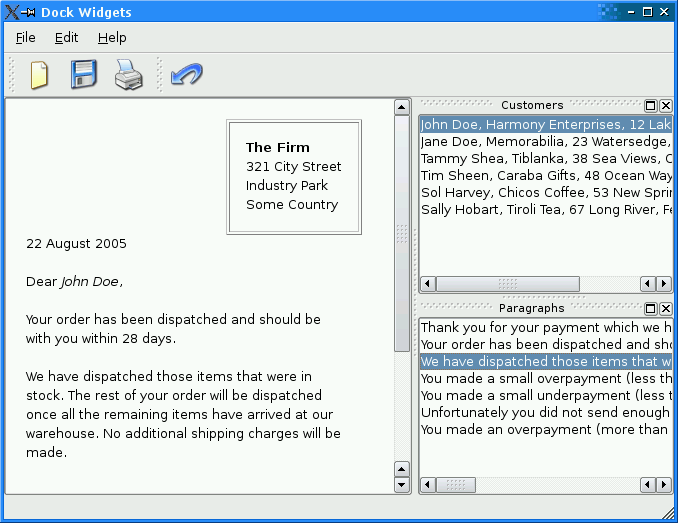
We create the customers dock window first, and in addition to a window title, we also pass it a
this
pointer so that it becomes a child of
MainWindow
. Normally we don’t have to pass a parent because widgets are parented automatically when they are laid out: but dock windows aren’t laid out using layouts.
We’ve chosen to restrict the customers dock window to the left and right dock areas. (So the user cannot drag the dock window to the top or bottom dock areas.) The user can drag the dock window out of the dock areas entirely so that it becomes a free floating window. We can change this (and whether the dock window is moveable or closable) using
setFeatures()
.
Once we’ve created the dock window we create a list widget with the dock window as parent, then we populate the list and make it the dock window’s widget. Finally we add the dock widget to the
MainWindow
使用
addDockWidget()
, choosing to put it in the right dock area.
We undertake a similar process for the paragraphs dock window, except that we don’t restrict which dock areas it can be dragged to.
Finally we set up the signal-slot connections. If the user clicks a customer or a paragraph their
currentTextChanged()
signal will be emitted and we connect these to
insertCustomer()
and addParagraph() passing the text that was clicked.
We briefly discuss the rest of the implementation, but have now covered everything relating to dock windows.
def Letter(self)
    textEdit.clear()
    cursor = QTextCursor(textEdit.textCursor())
    cursor.movePosition(QTextCursor.Start)
    topFrame = cursor.currentFrame()
    topFrameFormat = topFrame.frameFormat()
    topFrameFormat.setPadding(16)
    topFrame.setFrameFormat(topFrameFormat)
    textFormat = QTextCharFormat()
    boldFormat = QTextCharFormat()
    boldFormat.setFontWeight(QFont.Bold)
    italicFormat = QTextCharFormat()
    italicFormat.setFontItalic(True)
    tableFormat = QTextTableFormat()
    tableFormat.setBorder(1)
    tableFormat.setCellPadding(16)
    tableFormat.setAlignment(Qt.AlignRight)
    cursor.insertTable(1, 1, tableFormat)
    cursor.insertText("The Firm", boldFormat)
    cursor.insertBlock()
    cursor.insertText("321 City Street", textFormat)
    cursor.insertBlock()
    cursor.insertText("Industry Park")
    cursor.insertBlock()
    cursor.insertText("Some Country")
    cursor.setPosition(topFrame.lastPosition())
    cursor.insertText(QDate.currentDate().toString("d MMMM yyyy"), textFormat)
    cursor.insertBlock()
    cursor.insertBlock()
    cursor.insertText("Dear ", textFormat)
    cursor.insertText("NAME", italicFormat)
    cursor.insertText(",", textFormat)
    for i in range(3):
        cursor.insertBlock()
    cursor.insertText(tr("Yours sincerely,"), textFormat)
    for i in range(3):
        cursor.insertBlock()
    cursor.insertText("The Boss", textFormat)
    cursor.insertBlock()
    cursor.insertText("ADDRESS", italicFormat)
In this function we clear the
QTextEdit
so that it is empty. Next we create a
QTextCursor
在
QTextEdit
. We move the cursor to the start of the document and create and format a frame. We then create some character formats and a table format. We insert a table into the document and insert the company’s name and address into a table using the table and character formats we created earlier. Then we insert the skeleton of the letter including two markers
NAME
and
ADDRESS
. We will also use the
												Yours


												sincerely,
text as a marker.
def insertCustomer(self, customer):
    if customer.isEmpty():
        return
    customerList = customer.split(", ")
    document = textEdit.document()
    cursor = document.find("NAME")
    if not cursor.isNull():
        cursor.beginEditBlock()
        cursor.insertText(customerList.at(0))
        oldcursor = cursor
        cursor = document.find("ADDRESS")
        if not cursor.isNull():
            for i in range(customerList.size()):
                cursor.insertBlock()
                cursor.insertText(customerList.at(i))
            cursor.endEditBlock()
        else:
            oldcursor.endEditBlock()
If the user clicks a customer we split the customer details into pieces. We then look for the
NAME
marker using the
find()
function. This function selects the text it finds, so when we call
insertText()
with the customer’s name the name replaces the marker. We then look for the
ADDRESS
marker and replace it with each line of the customer’s address. Notice that we wrapped all the insertions between a
beginEditBlock()
and
endEditBlock()
pair. This means that the entire name and address insertion is treated as a single operation by the
QTextEdit
, so a single undo will revert all the insertions.
def addParagraph(self, paragraph):
    if (paragraph.isEmpty())
        return
    document = textEdit.document()
    cursor = document.find(tr("Yours sincerely,"))
    if cursor.isNull():
        return
    cursor.beginEditBlock()
    cursor.movePosition(QTextCursor.PreviousBlock, QTextCursor.MoveAnchor, 2)
    cursor.insertBlock()
    cursor.insertText(paragraph)
    cursor.insertBlock()
    cursor.endEditBlock()
This function works in a similar way to
insertCustomer()
. First we look for the marker, in this case,
												Yours


												sincerely,
, and then replace it with the standard paragraph that the user clicked. Again we use a
beginEditBlock()
…
endEditBlock()
pair so that the insertion can be undone as a single operation.
def print(self)
    document = textEdit.document()
    printer = QPrinter()
    dlg =  QPrintDialog(&printer, self)
    if dlg.exec() != QDialog.Accepted:
        return
    document.print(printer)
    statusBar().showMessage(tr("Ready"), 2000)
Qt’s
QTextDocument
class makes printing documents easy. We simply take the
QTextEdit
‘s
QTextDocument
, set up the printer and print the document.
def save(self):
    fileName = QFileDialog.getSaveFileName(self,
                        tr("Choose a file name"), ".",
                        tr("HTML (*.html *.htm)"))
    if fileName.isEmpty():
        return
    file = QFile(fileName)
    if !file.open(QFile.WriteOnly | QFile::Text):
        QMessageBox.warning(self, tr("Dock Widgets"),
                             tr("Cannot write file %1:\n%2.")
                             .arg(fileName)
                             .arg(file.errorString()))
        return
    out = QTextStream(file)
    QApplication.setOverrideCursor(Qt::WaitCursor)
    out << textEdit.toHtml()
    QApplication.restoreOverrideCursor()
    statusBar().showMessage(tr("Saved '%1'").arg(fileName), 2000)
QTextEdit
can output its contents in HTML format, so we prompt the user for the name of an HTML file and if they provide one we simply write the
QTextEdit
‘s contents in HTML format to the file.
def undo(self):
    document = textEdit.document()
    document.undo()
If the focus is in the
QTextEdit
, pressing Ctrl+Z undoes as expected. But for the user’s convenience we provide an application-wide undo function that simply calls the
QTextEdit
‘s undo: this means that the user can undo regardless of where the focus is in the application.
范例工程 @ code.qt.io