In the constructor, we start off by creating a regular
QWidget
and make it our main window’s central widget. Note that the main window takes ownership of the widget pointer and deletes it at the appropriate time.
def __init__(self):
    Q__init__(self)
    widget =  QWidget()
    setCentralWidget(widget)
    topFiller =  QWidget()
    topFiller.setSizePolicy(QSizePolicy.Expanding, QSizePolicy.Expanding)
    infoLabel =  QLabel(tr("<i>Choose a menu option, or right-click to "
                              "invoke a context menu</i>"))
    infoLabel.setFrameStyle(QFrame.StyledPanel | QFrame.Sunken)
    infoLabel.setAlignment(Qt.AlignCenter)
    bottomFiller = QWidget()
    bottomFiller.setSizePolicy(QSizePolicy.Expanding, QSizePolicy.Expanding)
    layout =  QVBoxLayout()
    layout.setMargin(5)
    layout.addWidget(topFiller)
    layout.addWidget(infoLabel)
    layout.addWidget(bottomFiller)
    widget.setLayout(layout)
Then we create the information label as well as a top and bottom filler that we add to a layout which we install on the central widget.
QMainWindow
objects come with their own customized layout and setting a layout on a the actual main window, or creating a layout with a main window as a parent, is considered an error. You should always set your own layout on the central widget instead.
createActions()
createMenus()
message = tr("A context menu is available by right-clicking")
statusBar().showMessage(message)
setWindowTitle(tr("Menus"))
setMinimumSize(160, 160)
resize(480, 320)
To create the actions and menus we call our two convenience functions:
createActions()
and
createMenus()
. We will get back to these shortly.
QMainWindow
‘s
statusBar()
function returns the status bar for the main window (if the status bar does not exist, this function will create and return an empty status bar). We initialize the status bar and window title, resize the window to an appropriate size as well as ensure that the main window cannot be resized to a smaller size than the given one.
Now, let’s take a closer look at the
createActions()
convenience function that creates the various actions:
def createActions(self):
    Act = new QAction(tr("&New"), self)
    Act.setShortcuts(QKeySequence.New)
    Act.setStatusTip(tr("Create a new file"))
    Act.triggered.connect(newFile)
    ...
A
QAction
object may contain an icon, a text, a shortcut, a status tip, a “What’s This?” text, and a tooltip. Most of these can be set in the constructor, but they can also be set independently using the provided convenience functions.
在
createActions()
function, we first create a
newAct
action. We make Ctrl+N its shortcut using the
setShortcut()
function, and we set its status tip using the
setStatusTip()
function (the status tip is displayed on all status bars provided by the action’s top-level parent widget). We also connect its
triggered()
signal to the
newFile()
槽。
The rest of the actions are created in a similar manner. Please see the source code for details.
alignmentGroup =  QActionGroup(self)
alignmentGroup.addAction(leftAlignAct)
alignmentGroup.addAction(rightAlignAct)
alignmentGroup.addAction(justifyAct)
alignmentGroup.addAction(centerAct)
leftAlignAct.setChecked(True)
Once we have created the Left Align, Right Align, Justify, and a Center actions, we can also create the previously mentioned action group.
Each action is added to the group using
QActionGroup
‘s
addAction()
function. Note that an action also can be added to a group by creating it with the group as its parent. Since an action group is exclusive by default, only one of the actions in the group is checked at any one time (this can be altered using the
setExclusive()
函数)。
When all the actions are created, we use the
createMenus()
function to add the actions to the menus and to insert the menus into the menu bar:
def createMenus(self):
    fileMenu = menuBar().addMenu(tr("&File"))
    fileMenu.addAction(Act)
    fileMenu.addAction(openAct)
    fileMenu.addAction(saveAct)
    fileMenu.addAction(printAct)
    fileMenu.addSeparator()
    fileMenu.addAction(exitAct)
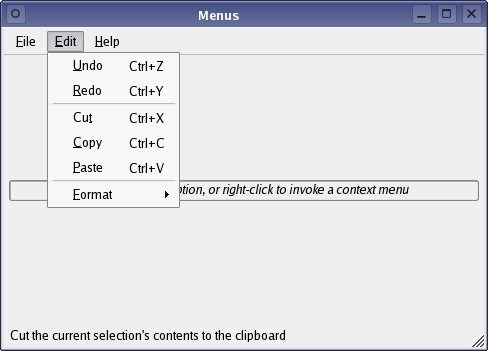
    editMenu = menuBar().addMenu(tr("&Edit"))
    editMenu.addAction(undoAct)
    editMenu.addAction(redoAct)
    editMenu.addSeparator()
    editMenu.addAction(cutAct)
    editMenu.addAction(copyAct)
    editMenu.addAction(pasteAct)
    editMenu.addSeparator()
    helpMenu = menuBar().addMenu(tr("&Help"))
    helpMenu.addAction(aboutAct)
    helpMenu.addAction(aboutQtAct)
QMenuBar
‘s
addMenu()
function appends a new
QMenu
with the given title, to the menu bar (note that the menu bar takes ownership of the menu). We use
QWidget
‘s
addAction()
function to add each action to the corresponding menu.
Alternatively, the
QMenu
class provides several
addAction()
convenience functions that create and add new actions from given texts and/or icons. You can also provide a member that will automatically connect to the new action’s
triggered()
signal, and a shortcut represented by a
QKeySequence
实例。
addSeparator()
function creates and returns a new separator action, i.e. an action for which
isSeparator()
returns true, and adds the new action to the menu’s list of actions.
formatMenu = editMenu.addMenu(tr("&Format"))
formatMenu.addAction(boldAct)
formatMenu.addAction(italicAct)
formatMenu.addSeparator()->setText(tr("Alignment"))
formatMenu.addAction(leftAlignAct)
formatMenu.addAction(rightAlignAct)
formatMenu.addAction(justifyAct)
formatMenu.addAction(centerAct)
formatMenu.addSeparator()
formatMenu.addAction(setLineSpacingAct)
formatMenu.addAction(setParagraphSpacingAct)
Note the Format menu. First of all, it is added as a submenu to the Edit Menu using
QMenu
‘s
addMenu()
function. Secondly, take a look at the alignment actions: In the
createActions()
function we added the
leftAlignAct
,
rightAlignAct
,
justifyAct
and
centerAct
actions to an action group. Nevertheless, we must add each action to the menu separately while the action group does its magic behind the scene.
def contextMenuEvent(self, event):
    menu = QMenu(self)
    menu.addAction(cutAct)
    menu.addAction(copyAct)
    menu.addAction(pasteAct)
    menu.exec_(event.globalPos()")
To provide a custom context menu, we must reimplement
QWidget
‘s
contextMenuEvent()
function to receive the widget’s context menu events (note that the default implementation simply ignores these events).
Whenever we receive such an event, we create a menu containing the Cut, Copy and Paste actions. Context menus can be executed either asynchronously using the
popup()
function or synchronously using the
exec()
function. In this example, we have chosen to show the menu using its
exec()
function. By passing the event’s position as argument we ensure that the context menu appears at the expected position.
范例工程 @ code.qt.io