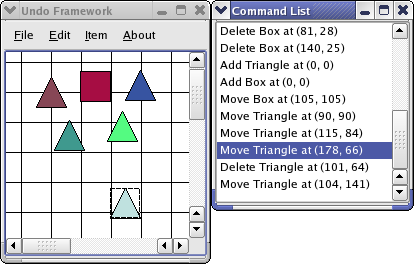
We will start with a look at the constructor:
MainWindow::MainWindow()
{
    undoStack = new QUndoStack(this);
    createActions();
    createMenus();
    createUndoView();
    diagramScene = new DiagramScene();
    QBrush pixmapBrush(QPixmap(":/images/cross.png").scaled(30, 30));
    diagramScene->setBackgroundBrush(pixmapBrush);
    diagramScene->setSceneRect(QRect(0, 0, 500, 500));
    connect(diagramScene, &DiagramScene::itemMoved,
            this, &MainWindow::itemMoved);
    setWindowTitle("Undo Framework");
    QGraphicsView *view = new QGraphicsView(diagramScene);
    setCentralWidget(view);
    resize(700, 500);
}
In the constructor, we set up the DiagramScene and
QGraphicsView
.
这里是
createUndoView()
函数:
void MainWindow::createUndoView()
{
    undoView = new QUndoView(undoStack);
    undoView->setWindowTitle(tr("Command List"));
    undoView->show();
    undoView->setAttribute(Qt::WA_QuitOnClose, false);
}
QUndoView
is a widget that display the text, which is set with the
setText()
function, for each
QUndoCommand
in the undo stack in a list.
这里是
createActions()
函数:
void MainWindow::createActions()
{
    deleteAction = new QAction(tr("&Delete Item"), this);
    deleteAction->setShortcut(tr("Del"));
    connect(deleteAction, &QAction::triggered, this, &MainWindow::deleteItem);
    ...
    undoAction = undoStack->createUndoAction(this, tr("&Undo"));
    undoAction->setShortcuts(QKeySequence::Undo);
    redoAction = undoStack->createRedoAction(this, tr("&Redo"));
    redoAction->setShortcuts(QKeySequence::Redo);
createActions()
function sets up all the examples actions in the manner shown above. The
createUndoAction()
and
createRedoAction()
helps us crate actions that are disabled and enabled based on the state of the stack. Also, the text of the action will be updated automatically based on the
text()
of the undo commands. For the other actions we have implemented slots in the
MainWindow
类。
这里是
createMenus()
函数:
void MainWindow::createMenus()
{
    ...
    editMenu = menuBar()->addMenu(tr("&Edit"));
    editMenu->addAction(undoAction);
    editMenu->addAction(redoAction);
    editMenu->addSeparator();
    editMenu->addAction(deleteAction);
    connect(editMenu, &QMenu::aboutToShow,
            this, &MainWindow::itemMenuAboutToShow);
    connect(editMenu, &QMenu::aboutToHide,
            this, &MainWindow::itemMenuAboutToHide);
    ...
}
We have to use the
QMenu
aboutToShow()
and
aboutToHide()
signals since we only want
deleteAction
to be enabled when we have selected an item.
这里是
itemMoved()
槽:
void MainWindow::itemMoved(DiagramItem *movedItem,
                           const QPointF &oldPosition)
{
    undoStack->push(new MoveCommand(movedItem, oldPosition));
}
We simply push a MoveCommand on the stack, which calls
redo()
on it.
这里是
deleteItem()
槽:
void MainWindow::deleteItem()
{
    if (diagramScene->selectedItems().isEmpty())
        return;
    QUndoCommand *deleteCommand = new DeleteCommand(diagramScene);
    undoStack->push(deleteCommand);
}
An item must be selected to be deleted. We need to check if it is selected as the
deleteAction
may be enabled even if an item is not selected. This can happen as we do not catch a signal or event when an item is selected.
这里是
itemMenuAboutToShow()
and itemMenuAboutToHide() slots:
void MainWindow::itemMenuAboutToHide()
{
    deleteAction->setEnabled(true);
}
void MainWindow::itemMenuAboutToShow()
{
    deleteAction->setEnabled(!diagramScene->selectedItems().isEmpty());
}
We implement
itemMenuAboutToShow()
and
itemMenuAboutToHide()
to get a dynamic item menu. These slots are connected to the
aboutToShow()
and
aboutToHide()
signals. We need this to disable or enable the
deleteAction
.
这里是
addBox()
槽:
void MainWindow::addBox()
{
    QUndoCommand *addCommand = new AddCommand(DiagramItem::Box, diagramScene);
    undoStack->push(addCommand);
}
addBox()
function creates an AddCommand and pushes it on the undo stack.
这里是
addTriangle()
sot:
void MainWindow::addTriangle()
{
    QUndoCommand *addCommand = new AddCommand(DiagramItem::Triangle,
                                              diagramScene);
    undoStack->push(addCommand);
}
addTriangle()
function creates an AddCommand and pushes it on the undo stack.
这里是实现为
about()
:
void MainWindow::about()
{
    QMessageBox::about(this, tr("About Undo"),
                       tr("The <b>Undo</b> example demonstrates how to "
                          "use Qt's undo framework."));
}
The about slot is triggered by the
aboutAction
and displays an about box for the example.