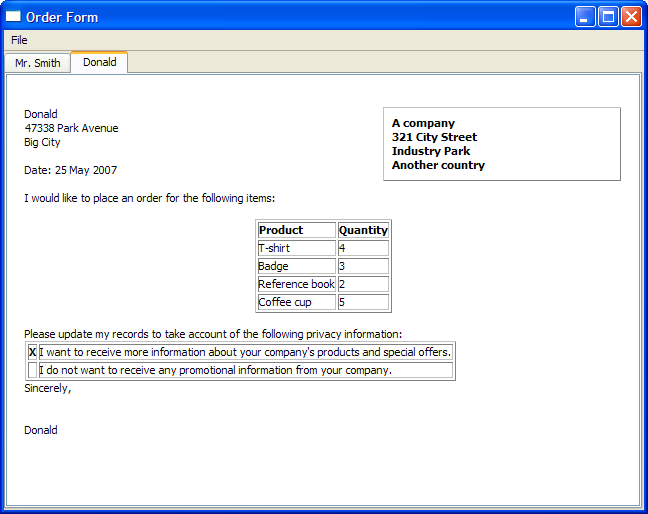
MainWindow
constructor sets up the
fileMenu
and the required actions,
newAction
and
printAction
. These actions’
triggered()
signals are connected to the additionally implemented openDialog() slot and the default close() slot. The
QTabWidget
,
letters
, is instantiated and set as the window’s central widget.
MainWindow::MainWindow()
{
    QMenu *fileMenu = new QMenu(tr("&File"), this);
    QAction *newAction = fileMenu->addAction(tr("&New..."));
    newAction->setShortcuts(QKeySequence::New);
    printAction = fileMenu->addAction(tr("&Print..."), this, &MainWindow::printFile);
    printAction->setShortcuts(QKeySequence::Print);
    printAction->setEnabled(false);
    QAction *quitAction = fileMenu->addAction(tr("E&xit"));
    quitAction->setShortcuts(QKeySequence::Quit);
    menuBar()->addMenu(fileMenu);
    letters = new QTabWidget;
    connect(newAction, &QAction::triggered, this, &MainWindow::openDialog);
    connect(quitAction, &QAction::triggered, this, &MainWindow::close);
    setCentralWidget(letters);
    setWindowTitle(tr("Order Form"));
}
createLetter()
function creates a new
QTabWidget
采用
QTextEdit
,
editor
, as the parent. This function accepts four parameters that correspond to we obtained through
DetailsDialog
, in order to “fill” the
editor
.
void MainWindow::createLetter(const QString &name, const QString &address,
                              QList<QPair<QString,int> > orderItems,
                              bool sendOffers)
{
    QTextEdit *editor = new QTextEdit;
    int tabIndex = letters->addTab(editor, name);
    letters->setCurrentIndex(tabIndex);
We then obtain the cursor for the
editor
使用
textCursor()
。
cursor
is then moved to the start of the document using
Start
.
QTextCursor cursor(editor->textCursor());
cursor.movePosition(QTextCursor::Start);
Recall the structure of a
Rich Text Document
, where sequences of frames and tables are always separated by text blocks, some of which may contain no information.
In the case of the Order Form Example, the document structure for this portion is described by the table below:
|
frame with
referenceFrameFormat
|
|
|
|
|
|
|
|
This is accomplished with the following code:
QTextFrame *topFrame = cursor.currentFrame();
QTextFrameFormat topFrameFormat = topFrame->frameFormat();
topFrameFormat.setPadding(16);
topFrame->setFrameFormat(topFrameFormat);
QTextCharFormat textFormat;
QTextCharFormat boldFormat;
boldFormat.setFontWeight(QFont::Bold);
QTextFrameFormat referenceFrameFormat;
referenceFrameFormat.setBorder(1);
referenceFrameFormat.setPadding(8);
referenceFrameFormat.setPosition(QTextFrameFormat::FloatRight);
referenceFrameFormat.setWidth(QTextLength(QTextLength::PercentageLength, 40));
cursor.insertFrame(referenceFrameFormat);
cursor.insertText("A company", boldFormat);
cursor.insertBlock();
cursor.insertText("321 City Street");
cursor.insertBlock();
cursor.insertText("Industry Park");
cursor.insertBlock();
cursor.insertText("Another country");
注意:
topFrame
是
editor
‘s top-level frame and is not shown in the document structure.
We then set the
cursor
‘s position back to its last position in
topFrame
and fill in the customer’s name (provided by the constructor) and address - using a range-based for loop to traverse the
QString
,
address
.
cursor.setPosition(topFrame->lastPosition());
cursor.insertText(name, textFormat);
const QStringList lines = address.split('\n');
for (const QString &line : lines) {
    cursor.insertBlock();
    cursor.insertText(line);
}
cursor
is now back in
topFrame
and the document structure for the above portion of code is:
|
block
|
Donald
|
|
block
|
																47338


																Park


																Avenue
|
|
block
|
																Big


																City
|
For spacing purposes, we invoke
insertBlock()
twice. The
currentDate()
is obtained and displayed. We use
setWidth()
to increase the width of
bodyFrameFormat
and we insert a new frame with that width.
cursor.insertBlock();
cursor.insertBlock();
QDate date = QDate::currentDate();
cursor.insertText(tr("Date: %1").arg(date.toString("d MMMM yyyy")),
                  textFormat);
cursor.insertBlock();
QTextFrameFormat bodyFrameFormat;
bodyFrameFormat.setWidth(QTextLength(QTextLength::PercentageLength, 100));
cursor.insertFrame(bodyFrameFormat);
The following code inserts standard text into the order form.
cursor.insertText(tr("I would like to place an order for the following "
                     "items:"), textFormat);
cursor.insertBlock();
cursor.insertBlock();
This part of the document structure now contains the date, a frame with
bodyFrameFormat
, as well as the standard text.
|
block
|
|
block
|
|
block
|
|
block
|
|
frame with
bodyFrameFormat
|
|
|
|
A
QTextTableFormat
对象,
orderTableFormat
, is used to hold the type of item and the quantity ordered.
QTextTableFormat orderTableFormat;
orderTableFormat.setAlignment(Qt::AlignHCenter);
QTextTable *orderTable = cursor.insertTable(1, 2, orderTableFormat);
QTextFrameFormat orderFrameFormat = cursor.currentFrame()->frameFormat();
orderFrameFormat.setBorder(1);
cursor.currentFrame()->setFrameFormat(orderFrameFormat);
使用
cellAt()
to set the headers for the
orderTable
.
cursor = orderTable->cellAt(0, 0).firstCursorPosition();
cursor.insertText(tr("Product"), boldFormat);
cursor = orderTable->cellAt(0, 1).firstCursorPosition();
cursor.insertText(tr("Quantity"), boldFormat);
Then, we iterate through the
QList
of
QPair
objects to populate
orderTable
.
for (int i = 0; i < orderItems.count(); ++i) {
    QPair<QString,int> item = orderItems[i];
    int row = orderTable->rows();
    orderTable->insertRows(row, 1);
    cursor = orderTable->cellAt(row, 0).firstCursorPosition();
    cursor.insertText(item.first, textFormat);
    cursor = orderTable->cellAt(row, 1).firstCursorPosition();
    cursor.insertText(QString("%1").arg(item.second), textFormat);
}
The resulting document structure for this section is:
|
orderTable
with
orderTableFormat
|
|
|
|
|
|
|
|
|
|
|
cursor
is then moved back to
topFrame
‘s
lastPosition()
and more standard text is inserted.
cursor.setPosition(topFrame->lastPosition());
cursor.insertBlock();
cursor.insertText(tr("Please update my records to take account of the "
                     "following privacy information:"));
cursor.insertBlock();
Another
QTextTable
is inserted, to display the customer’s preference regarding offers.
QTextTable *offersTable = cursor.insertTable(2, 2);
cursor = offersTable->cellAt(0, 1).firstCursorPosition();
cursor.insertText(tr("I want to receive more information about your "
                     "company's products and special offers."), textFormat);
cursor = offersTable->cellAt(1, 1).firstCursorPosition();
cursor.insertText(tr("I do not want to receive any promotional information "
                     "from your company."), textFormat);
if (sendOffers)
    cursor = offersTable->cellAt(0, 0).firstCursorPosition();
else
    cursor = offersTable->cellAt(1, 0).firstCursorPosition();
cursor.insertText("X", boldFormat);
The document structure for this portion is:
cursor
is moved to insert “Sincerely” along with the customer’s name. More blocks are inserted for spacing purposes. The
printAction
is enabled to indicate that an order form can now be printed.
    cursor.setPosition(topFrame->lastPosition());
    cursor.insertBlock();
    cursor.insertText(tr("Sincerely,"), textFormat);
    cursor.insertBlock();
    cursor.insertBlock();
    cursor.insertBlock();
    cursor.insertText(name);
    printAction->setEnabled(true);
}
The bottom portion of the document structure is:
createSample()
function is used for illustration purposes, to create a sample order form.
void MainWindow::createSample()
{
    DetailsDialog dialog("Dialog with default values", this);
    createLetter("Mr. Smith", "12 High Street\nSmall Town\nThis country",
                 dialog.orderItems(), true);
}
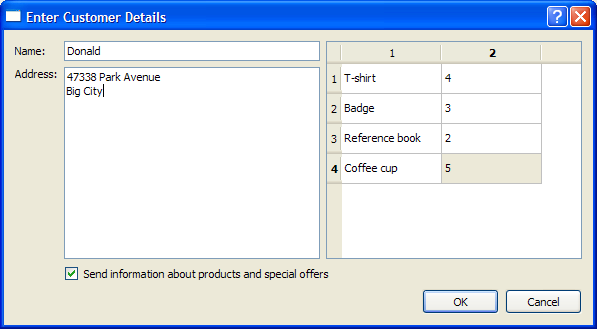
openDialog()
function opens a
DetailsDialog
object. If the details in
dialog
are accepted, the
createLetter()
function is invoked using the parameters extracted from
dialog
.
void MainWindow::openDialog()
{
    DetailsDialog dialog(tr("Enter Customer Details"), this);
    if (dialog.exec() == QDialog::Accepted) {
        createLetter(dialog.senderName(), dialog.senderAddress(),
                     dialog.orderItems(), dialog.sendOffers());
    }
}
In order to print out the order form, a
printFile()
function is included, as shown below:
void MainWindow::printFile()
{
#if defined(QT_PRINTSUPPORT_LIB) && QT_CONFIG(printdialog)
    QTextEdit *editor = static_cast<QTextEdit*>(letters->currentWidget());
    QPrinter printer;
    QPrintDialog dialog(&printer, this);
    dialog.setWindowTitle(tr("Print Document"));
    if (editor->textCursor().hasSelection())
        dialog.addEnabledOption(QAbstractPrintDialog::PrintSelection);
    if (dialog.exec() != QDialog::Accepted) {
        return;
    }
    editor->print(&printer);
#endif
}
This function also allows the user to print a selected area with
hasSelection()
, instead of printing the entire document.