This tutorial provides a quick walk-through of a python application that loads, and interacts with a QML file. QML is a declarative language that lets you design UIs faster than a traditional language, such as C++. The QtQml and QtQuick modules provides the necessary infrastructure for QML-based UIs.
In this tutorial, you will learn how to integrate Python with a QML application through a context property. This mechanism will help us to understand how to use Python as a backend for certain signals from the UI elements in the QML interface. Additionally, you will learn how to provide a modern look to your QML application using one of the features from Qt Quick Controls 2.
The tutorial is based on an application that allow you to set many text properties, like increasing the font size, changing the color, changing the style, and so on. Before you begin, install the PySide2 Python 包。
The following step-by-step process will guide you through the key elements of the QML based application and PySide2 integration:
First, let’s start with the following QML-based UI:
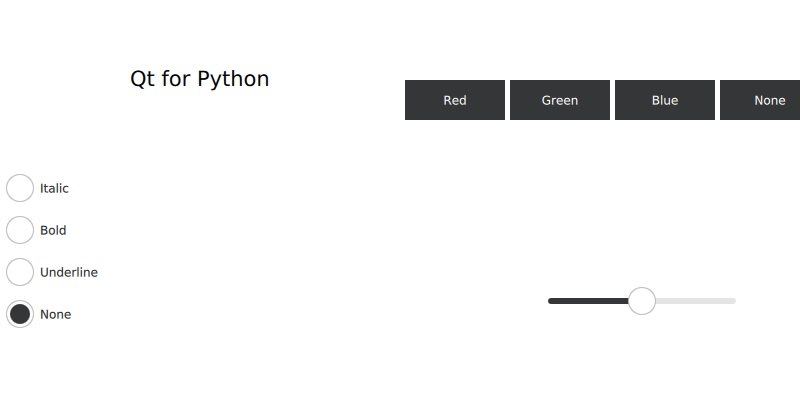
The design is based on a GridLayout , containing two ColumnLayout . Inside the UI you will find many RadioButton , Button ,和 Slider .
With the QML file in place, you can load it from Python:
Notice that we specify the name of the context property, con , and also we explicitly load our QML file.
定义 Bridge class, containing all the logic for the context property:
Now, go back to the QML file and connect the signals to the slots defined in the Bridge 类:
特性 Italic , Bold ,和 Underline are mutually exclusive, this means only one can be active at any time. To achieve this each time we select one of these options, we check the three properties via the context property as you can see in the above snippet. Only one of the three will return True , while the other two will return False , that is how we make sure only one is being applied to the text.
Each slot verifies if the selected option contains the text associated to the property:
Returning True or False allows you to activate and deactivate the properties of the QML UI elements.
It is also possible to return other values that are not 布尔 , like the slot in charge of returning the font size:
Now, for changing the look of our application, you have two options:
Use the command line: execute the python file adding the option, –style :
python main.py --style material
Use a qtquickcontrols2.conf 文件:
Then add it to your .qrc 文件:
Generate the rc file running, pyside2-rcc style.qrc > style_rc.py And finally import it from your main.py 脚本。
You can read more about this configuration file here .
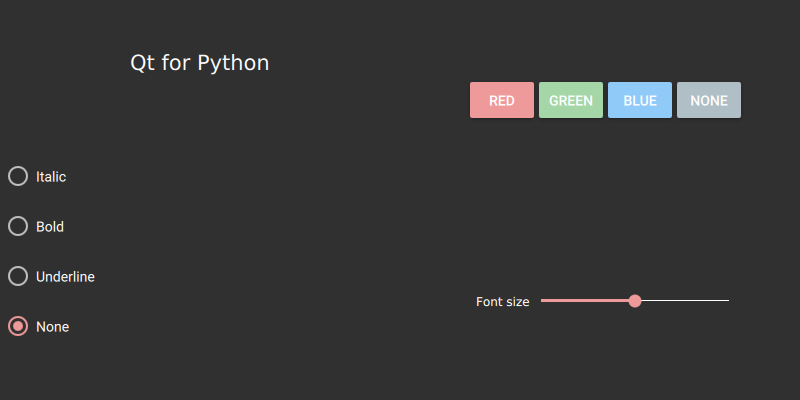
The final look of your application will be: