内容表

上一话题

费用工具教程

下一话题

QML 集成教程

QML 应用程序教程

This tutorial provides a quick walk-through of a python application that loads a QML file. QML is a declarative language that lets you design UIs faster than a traditional language, such as C++. The QtQml and QtQuick modules provides the necessary infrastructure for QML-based UIs.

In this tutorial, you’ll also learn how to provide data from Python as a QML context property, which is then consumed by the ListView defined in the QML file.

开始前,安装以下先决条件:

以下逐步说明指导您使用 Qt Creator 完成应用程序的开发过程:

  1. 打开 Qt Creator 和选择 File > New File or Project.. 菜单项以打开以下对话框:
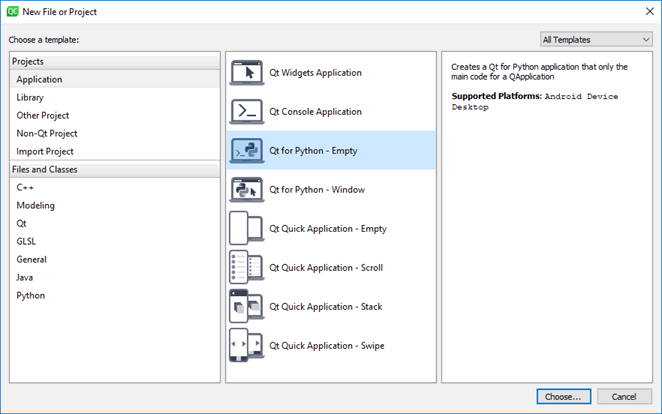
    ../../_images/newpyproject.png
  2. 选择 Qt for Python - Empty from the list of application templates and select Choose .
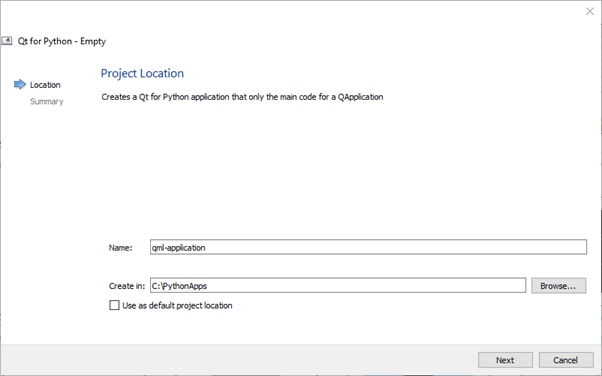
    ../../_images/pyprojname.png
  3. Give a Name to your project, choose its location in the filesystem, and select Finish to create an empty main.py and main.pyproject .
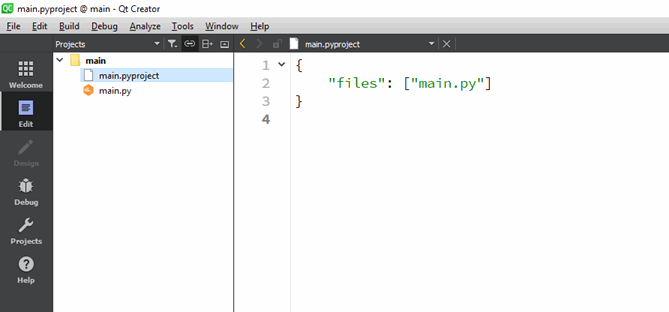
    ../../_images/pyprojxplor.png

    This should create a main.py and `main.pyproject 文件为工程。

  4. 下载 view.qml and logo.png 并把它们移动到工程文件夹下。

  5. 双击 main.pyproject to open it in edit mode, and append view.qml and logo.png 文件 list. This is how your project file should look after this change:

    {
        "files": ["main.py", "view.qml", "logo.png"]
    }
    										
  6. Now that you have the necessary bits for the application, import the Python modules in your main.py , and download country data and format it:

    
    #!/usr/bin/env python
    # -*- conding: utf-8 -*-
    import os, sys, urllib.request, json
    import PySide2.QtQml
    from PySide2.QtQuick import QQuickView
    from PySide2.QtCore import QStringListModel, Qt, QUrl
    from PySide2.QtGui import QGuiApplication
    if __name__ == '__main__':
    
        #get our data
        url = "http://country.io/names.json"
        response = urllib.request.urlopen(url)
        data = json.loads(response.read().decode('utf-8'))
    
        #Format and sort the data
        data_list = list(data.values())
        data_list.sort()
    
    											
  7. 现在,设置应用程序窗口使用 PySide2.QtGui.QGuiApplication ,管理应用程序范围的设置。

    
    #!/usr/bin/env python
    # -*- conding: utf-8 -*-
    import os, sys, urllib.request, json
    import PySide2.QtQml
    from PySide2.QtQuick import QQuickView
    from PySide2.QtCore import QStringListModel, Qt, QUrl
    from PySide2.QtGui import QGuiApplication
    if __name__ == '__main__':
        #get our data
        url = "http://country.io/names.json"
        response = urllib.request.urlopen(url)
        data = json.loads(response.read().decode('utf-8'))
        #Format and sort the data
        data_list = list(data.values())
        data_list.sort()
        #Set up the application window
        app = QGuiApplication(sys.argv)
        view = QQuickView()
        view.setResizeMode(QQuickView.SizeRootObjectToView)


    注意

    Setting the resize policy is important if you want the root item to resize itself to fit the window or vice-a-versa. Otherwise, the root item will retain its original size on resizing the window.

  8. You can now expose the data_list variable as a QML context property, which will be consumed by the QML ListView item in view.qml .

    
    #!/usr/bin/env python
    # -*- conding: utf-8 -*-
    import os, sys, urllib.request, json
    import PySide2.QtQml
    from PySide2.QtQuick import QQuickView
    from PySide2.QtCore import QStringListModel, Qt, QUrl
    from PySide2.QtGui import QGuiApplication
    if __name__ == '__main__':
        #get our data
        url = "http://country.io/names.json"
        response = urllib.request.urlopen(url)
        data = json.loads(response.read().decode('utf-8'))
        #Format and sort the data
        data_list = list(data.values())
        data_list.sort()
        #Set up the application window
        app = QGuiApplication(sys.argv)
        view = QQuickView()
        view.setResizeMode(QQuickView.SizeRootObjectToView)
        #Expose the list to the Qml code
        my_model = QStringListModel()
        my_model.setStringList(data_list)
        view.rootContext().setContextProperty("myModel",my_model)
    
    											
  9. 加载 view.qml QQuickView 和调用 show() 以显示应用程序窗口。

    
    #!/usr/bin/env python
    # -*- conding: utf-8 -*-
    import os, sys, urllib.request, json
    import PySide2.QtQml
    from PySide2.QtQuick import QQuickView
    from PySide2.QtCore import QStringListModel, Qt, QUrl
    from PySide2.QtGui import QGuiApplication
    if __name__ == '__main__':
        #get our data
        url = "http://country.io/names.json"
        response = urllib.request.urlopen(url)
        data = json.loads(response.read().decode('utf-8'))
        #Format and sort the data
        data_list = list(data.values())
        data_list.sort()
        #Set up the application window
        app = QGuiApplication(sys.argv)
        view = QQuickView()
        view.setResizeMode(QQuickView.SizeRootObjectToView)
        #Expose the list to the Qml code
        my_model = QStringListModel()
        my_model.setStringList(data_list)
        view.rootContext().setContextProperty("myModel",my_model)
        #Load the QML file
        qml_file = os.path.join(os.path.dirname(__file__),"view.qml")
        view.setSource(QUrl.fromLocalFile(os.path.abspath(qml_file)))
    
        #Show the window
        if view.status() == QQuickView.Error:
            sys.exit(-1)
        view.show()
    
    											
  10. 最后,执行应用程序以启动事件循环并进行清理。

    
    #!/usr/bin/env python
    # -*- conding: utf-8 -*-
    import os, sys, urllib.request, json
    import PySide2.QtQml
    from PySide2.QtQuick import QQuickView
    from PySide2.QtCore import QStringListModel, Qt, QUrl
    from PySide2.QtGui import QGuiApplication
    if __name__ == '__main__':
        #get our data
        url = "http://country.io/names.json"
        response = urllib.request.urlopen(url)
        data = json.loads(response.read().decode('utf-8'))
        #Format and sort the data
        data_list = list(data.values())
        data_list.sort()
        #Set up the application window
        app = QGuiApplication(sys.argv)
        view = QQuickView()
        view.setResizeMode(QQuickView.SizeRootObjectToView)
        #Expose the list to the Qml code
        my_model = QStringListModel()
        my_model.setStringList(data_list)
        view.rootContext().setContextProperty("myModel",my_model)
        #Load the QML file
        qml_file = os.path.join(os.path.dirname(__file__),"view.qml")
        view.setSource(QUrl.fromLocalFile(os.path.abspath(qml_file)))
        #Show the window
        if view.status() == QQuickView.Error:
            sys.exit(-1)
        view.show()
        #execute and cleanup
        app.exec_()
        del view
    
    											
  11. 应用程序就绪,现在可以运行。选择 Projects 模式以选取运行它的 Python 版本。
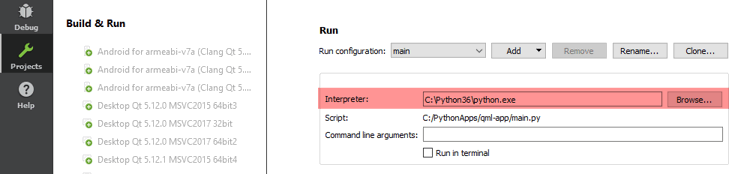
    ../../_images/projectsmode.png

运行应用程序通过使用 CTRL+R 键盘快捷键,看是否看起来像这样:

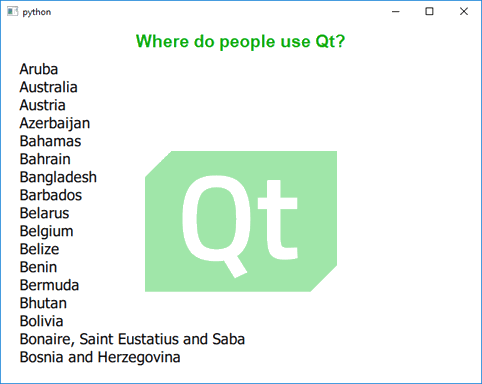
../../_images/qmlapplication.png

You could also watch the following video tutorial for guidance to develop this application: