sqlDialog.py
We import the pertinent libraries to our program, define a global variable that hold the name of our table, and define the global function
createTable()
that creates a new table if it doesn’t already exist. The database contains a single line to mock the beginning of a conversation.
import datetime
import logging
from PySide2.QtCore import Qt, Slot
from PySide2.QtSql import QSqlDatabase, QSqlQuery, QSqlRecord, QSqlTableModel
table_name = "Conversations"
def createTable():
    if table_name in QSqlDatabase.database().tables():
        return
    query = QSqlQuery()
    if not query.exec_(
        """
        CREATE TABLE IF NOT EXISTS 'Conversations' (
            'author' TEXT NOT NULL,
            'recipient' TEXT NOT NULL,
            'timestamp' TEXT NOT NULL,
            'message' TEXT NOT NULL,
        FOREIGN KEY('author') REFERENCES Contacts ( name ),
        FOREIGN KEY('recipient') REFERENCES Contacts ( name )
        )
        """
    ):
        logging.error("Failed to query database")
    # This adds the first message from the Bot
    # and further development is required to make it interactive.
    query.exec_(
        """
        INSERT INTO Conversations VALUES(
            'machine', 'Me', '2019-01-07T14:36:06', 'Hello!'
        )
        """
    )
    logging.info(query)
SqlConversationModel
class offers the read-only data model required for the non-editable contacts list. It derives from the
QSqlQueryModel
class, which is the logical choice for this use case. Then, we proceed to create the table, set its name to the one defined previously with the
setTable()
method. We add the necessary attributes to the table, to have a program that reflects the idea of a chat application.
class SqlConversationModel(QSqlTableModel):
    def __init__(self, parent=None):
        super(SqlConversationModel, self).__init__(parent)
        createTable()
        self.setTable(table_name)
        self.setSort(2, Qt.DescendingOrder)
        self.setEditStrategy(QSqlTableModel.OnManualSubmit)
        self.recipient = ""
        self.select()
        logging.debug("Table was loaded successfully.")
在
setRecipient()
, you set a filter over the returned results from the database, and emit a signal every time the recipient of the message changes.
    def setRecipient(self, recipient):
        if recipient == self.recipient:
            pass
        self.recipient = recipient
        filter_str = (
            "(recipient = '{}' AND author = 'Me') OR " "(recipient = 'Me' AND author='{}')"
        ).format(self.recipient)
        self.setFilter(filter_str)
        self.select()
data()
function falls back to
QSqlTableModel
’s implementation if the role is not a custom user role. If you get a user role, we can subtract
UserRole()
from it to get the index of that field, and then use that index to find the value to be returned.
    def data(self, index, role):
        if role < Qt.UserRole:
            return QSqlTableModel.data(self, index, role)
        sql_record = QSqlRecord()
        sql_record = self.record(index.row())
        return sql_record.value(role - Qt.UserRole)
在
roleNames()
, we return a Python dictionary with our custom role and role names as key-values pairs, so we can use these roles in QML. Alternatively, it can be useful to declare an Enum to hold all of the role values. Note that
names
has to be a hash to be used as a dictionary key, and that’s why we’re using the
hash
函数。
    def roleNames(self):
        """Converts dict to hash because that's the result expected
        by QSqlTableModel"""
        names = {}
        author = "author".encode()
        recipient = "recipient".encode()
        timestamp = "timestamp".encode()
        message = "message".encode()
        names[hash(Qt.UserRole)] = author
        names[hash(Qt.UserRole + 1)] = recipient
        names[hash(Qt.UserRole + 2)] = timestamp
        names[hash(Qt.UserRole + 3)] = message
        return names
send_message()
function uses the given recipient and message to insert a new record into the database. Using
OnManualSubmit()
requires you to also call
submitAll()
, since all the changes will be cached in the model until you do so.
    def send_message(self, recipient, message, author):
        timestamp = datetime.datetime.now()
        new_record = self.record()
        new_record.setValue("author", author)
        new_record.setValue("recipient", recipient)
        new_record.setValue("timestamp", str(timestamp))
        new_record.setValue("message", message)
        logging.debug('Message: "{}" \n Received by: "{}"'.format(message, recipient))
        if not self.insertRecord(self.rowCount(), new_record):
            logging.error("Failed to send message: {}".format(self.lastError().text()))
            return
        self.submitAll()
        self.select()
chat.qml
Let’s look at the
chat.qml
文件。
import QtQuick 2.12
import QtQuick.Layouts 1.12
import QtQuick.Controls 2.12
First, import the Qt Quick module. This gives us access to graphical primitives such as Item, Rectangle, Text, and so on. For a full list of types, see the
Qt Quick QML 类型
documentation. We then add QtQuick.Layouts import, which we’ll cover shortly.
Next, import the Qt Quick Controls module. Among other things, this provides access to
ApplicationWindow
, which replaces the existing root type, Window:
Let’s step through the
chat.qml
文件。
ApplicationWindow {
    id: window
    title: qsTr("Chat")
    width: 640
    height: 960
    visible: true
ApplicationWindow
is a Window with some added convenience for creating a header and a footer. It also provides the foundation for popups and supports some basic styling, such as the background color.
There are three properties that are almost always set when using ApplicationWindow:
width
,
height
,和
visible
. Once we’ve set these, we have a properly sized, empty window ready to be filled with content.
There are two ways of laying out items in QML:
Item Positioners
and
Qt Quick Layouts
. * Item positioners (
Row
,
Column
, and so on) are useful for situations where the size of items
is known or fixed, and all that is required is to neatly position them in a certain formation.
Pane is basically a rectangle whose color comes from the application’s style. It’s similar to
Frame
, but it has no stroke around its border.
Items that are direct children of a layout have various
attached properties
available to them. We use
Layout.fillWidth
and
Layout.fillHeight
在
ListView
to ensure that it takes as much space within the
ColumnLayout
as it can, and the same is done for the Pane. As
ColumnLayout
is a vertical layout, there aren’t any items to the left or right of each child, so this results in each item consuming the entire width of the layout.
On the other hand, the
Layout.fillHeight
statement in the
ListView
enables it to occupy the remaining space that is left after accommodating the Pane.
Let’s look at the
Listview
in detail:
        ListView {
            id: listView
            Layout.fillWidth: true
            Layout.fillHeight: true
            Layout.margins: pane.leftPadding + messageField.leftPadding
            displayMarginBeginning: 40
            displayMarginEnd: 40
            verticalLayoutDirection: ListView.BottomToTop
            spacing: 12
            model: chat_model
            delegate: Column {
                readonly property bool sentByMe: model.recipient !== "Me"
                anchors.right: sentByMe ? parent.right : undefined
                spacing: 6
                Row {
                    id: messageRow
                    spacing: 6
                    anchors.right: sentByMe ? parent.right : undefined
                    Rectangle {
                        width: Math.min(messageText.implicitWidth + 24, listView.width - messageRow.spacing)
                        height: messageText.implicitHeight + 24
                        radius: 15
                        color: sentByMe ? "lightgrey" : "#ff627c"
                        Label {
                            id: messageText
                            text: model.message
                            color: sentByMe ? "black" : "white"
                            anchors.fill: parent
                            anchors.margins: 12
                            wrapMode: Label.Wrap
                        }
                    }
                }
                Label {
                    id: timestampText
                    text: Qt.formatDateTime(model.timestamp, "d MMM hh:mm")
                    color: "lightgrey"
                    anchors.right: sentByMe ? parent.right : undefined
                }
            }
            ScrollBar.vertical: ScrollBar {}
        }
After filling the
width
and
height
of its parent, we also set some margins on the view.
Next, we set
displayMarginBeginning
and
displayMarginEnd
. These properties ensure that the delegates outside the view don’t disappear when you scroll at the edges of the view. To get a better understanding, consider commenting out the properties and then rerun your code. Now watch what happens when you scroll the view.
We then flip the vertical direction of the view, so that first items are at the bottom.
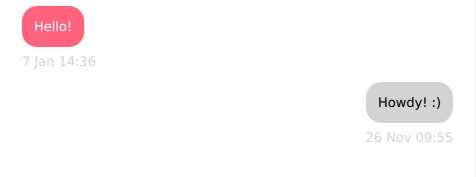
Additionally, messages sent by the contact should be distinguished from those sent by a contact. For now, when a message is sent by you, we set a
sentByMe
property, to alternate between different contacts. Using this property, we distinguish between different contacts in two ways:
-
Messages sent by the contact are aligned to the right side of the screen by setting
anchors.right
to
parent.right
.
-
We change the color of the rectangle depending on the contact. Since we don’t want to display dark text on a dark background, and vice versa, we also set the text color depending on who the contact is.
At the bottom of the screen, we place a
TextArea
item to allow multi-line text input, and a button to send the message. We use Pane to cover the area under these two items:
        Pane {
            id: pane
            Layout.fillWidth: true
            RowLayout {
                width: parent.width
                TextArea {
                    id: messageField
                    Layout.fillWidth: true
                    placeholderText: qsTr("Compose message")
                    wrapMode: TextArea.Wrap
                }
                Button {
                    id: sendButton
                    text: qsTr("Send")
                    enabled: messageField.length > 0
                    onClicked: {
                        chat_model.send_message("machine", messageField.text, "Me");
                        messageField.text = "";
                    }
                }
            }
        }
TextArea
should fill the available width of the screen. We assign some placeholder text to provide a visual cue to the contact as to where they should begin typing. The text within the input area is wrapped to ensure that it does not go outside of the screen.
Lastly, we have a button that allows us to call the
send_message
method we defined on
sqlDialog.py
, since we’re just having a mock up example here and there is only one possible recipient and one possible sender for this conversation we’re just using strings here.
main.py
使用
logging
instead of Python’s
print()
, because it provides a better way to control the messages levels that our application will generate (errors, warnings, and information messages).
import logging
from PySide2.QtCore import QDir, QFile, QUrl
from PySide2.QtGui import QGuiApplication
from PySide2.QtQml import QQmlApplicationEngine
from PySide2.QtSql import QSqlDatabase
from sqlDialog import SqlConversationModel
logging.basicConfig(filename="chat.log", level=logging.DEBUG)
logger = logging.getLogger("logger")
connectToDatabase()
creates a connection with the SQLite database, creating the actual file if it doesn’t already exist.
def connectToDatabase():
    database = QSqlDatabase.database()
    if not database.isValid():
        database = QSqlDatabase.addDatabase("QSQLITE")
        if not database.isValid():
            logger.error("Cannot add database")
    write_dir = QDir()
    if not write_dir.mkpath("."):
        logger.error("Failed to create writable directory")
    # Ensure that we have a writable location on all devices.
    filename = "{}/chat-database.sqlite3".format(write_dir.absolutePath())
    # When using the SQLite driver, open() will create the SQLite
    # database if it doesn't exist.
    database.setDatabaseName(filename)
    if not database.open():
        logger.error("Cannot open database")
        QFile.remove(filename)
A few interesting things happen in the
main
function: * Declaring a
QGuiApplication
.
-
Connecting to the database,
-
Declaring a
QQmlApplicationEngine
. This allows you to access the QML context property to connect Python and QML from the conversation model we built on
sqlDialog.py
.
-
Loading the
.qml
file that defines the UI.
Finally, the Qt application runs, and your program starts.
if __name__ == "__main__":
    app = QGuiApplication()
    connectToDatabase()
    sql_conversation_model = SqlConversationModel()
    engine = QQmlApplicationEngine()
    # Export pertinent objects to QML
    engine.rootContext().setContextProperty("chat_model", sql_conversation_model)
    engine.load(QUrl("chat.qml"))
    app.exec_()