QInputDialogclass provides a simple convenience dialog to get a single value from the user. 更多 …

def
cancelButtonText
()
def
comboBoxItems
()
def
doubleDecimals
()
def
doubleMaximum
()
def
doubleMinimum
()
def
doubleStep
()
def
doubleValue
()
def
inputMode
()
def
intMaximum
()
def
intMinimum
()
def
intStep
()
def
intValue
()
def
isComboBoxEditable
()
def
labelText
()
def
okButtonText
()
def
open
(receiver, member)
def
setCancelButtonText
(text)
def
setComboBoxEditable
(editable)
def
setComboBoxItems
(items)
def
setDoubleDecimals
(decimals)
def
setDoubleMaximum
(max)
def
setDoubleMinimum
(min)
def
setDoubleRange
(min, max)
def
setDoubleStep
(step)
def
setDoubleValue
(value)
def
setInputMode
(mode)
def
setIntMaximum
(max)
def
setIntMinimum
(min)
def
setIntRange
(min, max)
def
setIntStep
(step)
def
setIntValue
(value)
def
setLabelText
(text)
def
setOkButtonText
(text)
def
setOption
(option[, on=true])
def
setTextEchoMode
(mode)
def
setTextValue
(text)
def
testOption
(option)
def
textEchoMode
()
def
textValue
()
def
doubleValueChanged
(value)
def
doubleValueSelected
(value)
def
intValueChanged
(value)
def
intValueSelected
(value)
def
textValueChanged
(text)
def
textValueSelected
(text)
def
getDouble
(parent, title, label, value, minValue, maxValue, decimals, flags, step)
def
getDouble
(parent, title, label[, value=0[, minValue=-2147483647[, maxValue=2147483647[, decimals=1[, flags=Qt.WindowFlags()]]]]])
def
getInt
(parent, title, label[, value=0[, minValue=-2147483647[, maxValue=2147483647[, step=1[, flags=Qt.WindowFlags()]]]]])
def
getItem
(parent, title, label, items[, current=0[, editable=true[, flags=Qt.WindowFlags()[, inputMethodHints=Qt.ImhNone]]]])
def
getMultiLineText
(parent, title, label[, text=””[, flags=Qt.WindowFlags()[, inputMethodHints=Qt.ImhNone]]])
def
getText
(parent, title, label[, echo=QLineEdit.Normal[, text=””[, flags=Qt.WindowFlags()[, inputMethodHints=Qt.ImhNone]]]])
The input value can be a string, a number or an item from a list. A label must be set to tell the user what they should enter.
Five static convenience functions are provided:
getText(),getMultiLineText(),getInt(),getDouble(),和getItem(). All the functions can be used in a similar way, for example:text, ok = QInputDialog().getText(self, "QInputDialog().getText()", "User name:", QLineEdit.Normal, QDir().home().dirName()) if ok and text: textLabel.setText(text)
okvariable is set to true if the user clicks OK; otherwise, it is set to false.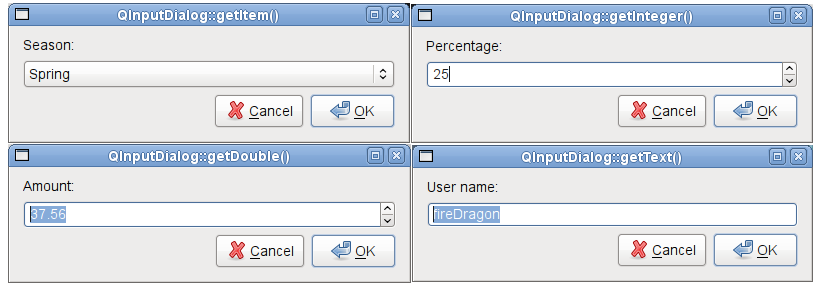
标准对话框 example shows how to use
QInputDialogas well as other built-in Qt dialogs.另请参阅
QMessageBox标准对话框范例
QInputDialog
(
[
parent=None
[
,
flags=Qt.WindowFlags()
]
]
)

- param parent
- param flags
WindowFlags
Constructs a new input dialog with the given
parent
and window
flags
.
PySide2.QtWidgets.QInputDialog.
InputDialogOption

This enum specifies various options that affect the look and feel of an input dialog.
|
常量 |
描述 |
|---|---|
|
QInputDialog.NoButtons |
Don’t display OK and Cancel buttons (useful for “live dialogs”). |
|
QInputDialog.UseListViewForComboBoxItems |
Use a
|
|
QInputDialog.UsePlainTextEditForTextInput |
Use a
|
另请参阅
options
setOption()
testOption()
PySide2.QtWidgets.QInputDialog.
InputMode

This enum describes the different modes of input that can be selected for the dialog.
|
常量 |
描述 |
|---|---|
|
QInputDialog.TextInput |
Used to input text strings. |
|
QInputDialog.IntInput |
Used to input integers. |
|
QInputDialog.DoubleInput |
Used to input floating point numbers with double precision accuracy. |
另请参阅
PySide2.QtWidgets.QInputDialog.
cancelButtonText
(
)

unicode
PySide2.QtWidgets.QInputDialog.
comboBoxItems
(
)

字符串列表
另请参阅
PySide2.QtWidgets.QInputDialog.
doubleDecimals
(
)

int
另请参阅
PySide2.QtWidgets.QInputDialog.
doubleMaximum
(
)

double
另请参阅
PySide2.QtWidgets.QInputDialog.
doubleMinimum
(
)

double
另请参阅
PySide2.QtWidgets.QInputDialog.
doubleStep
(
)

double
另请参阅
PySide2.QtWidgets.QInputDialog.
doubleValue
(
)

double
另请参阅
PySide2.QtWidgets.QInputDialog.
doubleValueChanged
(
value
)

value
–
double
PySide2.QtWidgets.QInputDialog.
doubleValueSelected
(
value
)

value
–
double
PySide2.QtWidgets.QInputDialog.
getDouble
(
parent
,
title
,
label
[
,
value=0
[
,
minValue=-2147483647
[
,
maxValue=2147483647
[
,
decimals=1
[
,
flags=Qt.WindowFlags()
]
]
]
]
]
)

parent
–
QWidget
title – unicode
label – unicode
value
–
double
minValue
–
double
maxValue
–
double
decimals
–
int
flags
–
WindowFlags
double
PySide2.QtWidgets.QInputDialog.
getDouble
(
parent
,
title
,
label
,
value
,
minValue
,
maxValue
,
decimals
,
flags
,
step
)

parent
–
QWidget
title – unicode
label – unicode
value
–
double
minValue
–
double
maxValue
–
double
decimals
–
int
flags
–
WindowFlags
step
–
double
double
Static convenience function to get a floating point number from the user.
title
is the text which is displayed in the title bar of the dialog.
label
is the text which is shown to the user (it should say what should be entered).
value
is the default floating point number that the line edit will be set to.
min
and
max
are the minimum and maximum values the user may choose.
decimals
is the maximum number of decimal places the number may have.
step
is the amount by which the values change as the user presses the arrow buttons to increment or decrement the value.
若
ok
is nonnull, *``ok`` will be set to true if the user pressed OK and to false if the user pressed Cancel. The dialog’s parent is
parent
. The dialog will be modal and uses the widget
flags
.
This function returns the floating point number which has been entered by the user.
Use this static function like this:
d, ok = QInputDialog().getDouble(self, "QInputDialog().getDouble()",
"Amount:", 37.56, -10000, 10000, 2)
if ok:
doubleLabel.setText("${}".format())
PySide2.QtWidgets.QInputDialog.
getInt
(
parent
,
title
,
label
[
,
value=0
[
,
minValue=-2147483647
[
,
maxValue=2147483647
[
,
step=1
[
,
flags=Qt.WindowFlags()
]
]
]
]
]
)

parent
–
QWidget
title – unicode
label – unicode
value
–
int
minValue
–
int
maxValue
–
int
step
–
int
flags
–
WindowFlags
int
Static convenience function to get an integer input from the user.
title
is the text which is displayed in the title bar of the dialog.
label
is the text which is shown to the user (it should say what should be entered).
value
is the default integer which the spinbox will be set to.
min
and
max
are the minimum and maximum values the user may choose.
step
is the amount by which the values change as the user presses the arrow buttons to increment or decrement the value.
若
ok
is nonnull *``ok`` will be set to true if the user pressed OK and to false if the user pressed Cancel. The dialog’s parent is
parent
. The dialog will be modal and uses the widget
flags
.
On success, this function returns the integer which has been entered by the user; on failure, it returns the initial
value
.
Use this static function like this:
i, ok = QInputDialog().getInteger(self, "QInputDialog().getInteger()",
"Percentage:", 25, 0, 100, 1)
if ok:
self.integerLabel.setText("{}%".format(i))
PySide2.QtWidgets.QInputDialog.
getItem
(
parent
,
title
,
label
,
items
[
,
current=0
[
,
editable=true
[
,
flags=Qt.WindowFlags()
[
,
inputMethodHints=Qt.ImhNone
]
]
]
]
)

parent
–
QWidget
title – unicode
label – unicode
items – 字符串列表
current
–
int
editable
–
bool
flags
–
WindowFlags
inputMethodHints
–
InputMethodHints
unicode
Static convenience function to let the user select an item from a string list.
title
is the text which is displayed in the title bar of the dialog.
label
is the text which is shown to the user (it should say what should be entered).
items
is the string list which is inserted into the combo box.
current
is the number of the item which should be the current item.
inputMethodHints
is the input method hints that will be used if the combo box is editable and an input method is active.
若
editable
is true the user can enter their own text; otherwise, the user may only select one of the existing items.
若
ok
is nonnull
*ok
will be set to true if the user pressed OK and to false if the user pressed Cancel. The dialog’s parent is
parent
. The dialog will be modal and uses the widget
flags
.
This function returns the text of the current item, or if
editable
is true, the current text of the combo box.
Use this static function like this:
items = ["Spring", "Summer", "Fall", "Winter"]
item, ok = QInputDialog().getItem(self, "QInputDialog().getItem()",
"Season:", items, 0, False)
if ok and not item.isEmpty():
itemLabel.setText(item)
PySide2.QtWidgets.QInputDialog.
getMultiLineText
(
parent
,
title
,
label
[
,
text=""
[
,
flags=Qt.WindowFlags()
[
,
inputMethodHints=Qt.ImhNone
]
]
]
)

parent
–
QWidget
title – unicode
label – unicode
text – unicode
flags
–
WindowFlags
inputMethodHints
–
InputMethodHints
unicode
Static convenience function to get a multiline string from the user.
title
is the text which is displayed in the title bar of the dialog.
label
is the text which is shown to the user (it should say what should be entered).
text
is the default text which is placed in the plain text edit.
inputMethodHints
is the input method hints that will be used in the edit widget if an input method is active.
若
ok
is nonnull
*ok
will be set to true if the user pressed OK and to false if the user pressed Cancel. The dialog’s parent is
parent
. The dialog will be modal and uses the specified widget
flags
.
If the dialog is accepted, this function returns the text in the dialog’s plain text edit. If the dialog is rejected, a null
QString
被返回。
Use this static function like this:
bool ok;
QString text = QInputDialog::getMultiLineText(this, tr("QInputDialog::getMultiLineText()"),
tr("Address:"), "John Doe\nFreedom Street", &ok);
if (ok && !text.isEmpty())
multiLineTextLabel->setText(text);
PySide2.QtWidgets.QInputDialog.
getText
(
parent
,
title
,
label
[
,
echo=QLineEdit.Normal
[
,
text=""
[
,
flags=Qt.WindowFlags()
[
,
inputMethodHints=Qt.ImhNone
]
]
]
]
)

parent
–
QWidget
title – unicode
label – unicode
echo
–
EchoMode
text – unicode
flags
–
WindowFlags
inputMethodHints
–
InputMethodHints
unicode
Static convenience function to get a string from the user.
title
is the text which is displayed in the title bar of the dialog.
label
is the text which is shown to the user (it should say what should be entered).
text
is the default text which is placed in the line edit.
mode
is the echo mode the line edit will use.
inputMethodHints
is the input method hints that will be used in the edit widget if an input method is active.
若
ok
is nonnull
*ok
will be set to true if the user pressed OK and to false if the user pressed Cancel. The dialog’s parent is
parent
. The dialog will be modal and uses the specified widget
flags
.
If the dialog is accepted, this function returns the text in the dialog’s line edit. If the dialog is rejected, a null
QString
被返回。
Use this static function like this:
text, ok = QInputDialog().getText(self, "QInputDialog().getText()",
                                     "User name:", QLineEdit.Normal,
                                     QDir().home().dirName())
if ok and text:
    textLabel.setText(text)
PySide2.QtWidgets.QInputDialog.
inputMode
(
)

另请参阅
PySide2.QtWidgets.QInputDialog.
intMaximum
(
)

int
另请参阅
PySide2.QtWidgets.QInputDialog.
intMinimum
(
)

int
另请参阅
PySide2.QtWidgets.QInputDialog.
intStep
(
)

int
另请参阅
PySide2.QtWidgets.QInputDialog.
intValue
(
)

int
另请参阅
PySide2.QtWidgets.QInputDialog.
intValueChanged
(
value
)

value
–
int
PySide2.QtWidgets.QInputDialog.
intValueSelected
(
value
)

value
–
int
PySide2.QtWidgets.QInputDialog.
isComboBoxEditable
(
)

bool
PySide2.QtWidgets.QInputDialog.
labelText
(
)

unicode
另请参阅
PySide2.QtWidgets.QInputDialog.
okButtonText
(
)

unicode
另请参阅
PySide2.QtWidgets.QInputDialog.
open
(
receiver
,
member
)

receiver
–
QObject
member – str
This function connects one of its signals to the slot specified by
receiver
and
member
. The specific signal depends on the arguments that are specified in
member
. These are:
textValueSelected()
if
member
has a
QString
for its first argument.
intValueSelected()
if
member
has an int for its first argument.
doubleValueSelected()
if
member
has a double for its first argument.
accepted()
if
member
has NO arguments.
信号将断开槽连接,当对话框被关闭时。
PySide2.QtWidgets.QInputDialog.
setCancelButtonText
(
text
)

text – unicode
另请参阅
PySide2.QtWidgets.QInputDialog.
setComboBoxEditable
(
editable
)

editable
–
bool
另请参阅
PySide2.QtWidgets.QInputDialog.
setComboBoxItems
(
items
)

items – 字符串列表
另请参阅
PySide2.QtWidgets.QInputDialog.
setDoubleDecimals
(
decimals
)

decimals
–
int
另请参阅
PySide2.QtWidgets.QInputDialog.
setDoubleMaximum
(
max
)

max
–
double
另请参阅
PySide2.QtWidgets.QInputDialog.
setDoubleMinimum
(
min
)

min
–
double
另请参阅
PySide2.QtWidgets.QInputDialog.
setDoubleRange
(
min
,
max
)

min
–
double
max
–
double
Sets the range of double precision floating point values accepted by the dialog when used in
DoubleInput
mode, with minimum and maximum values specified by
min
and
max
分别。
PySide2.QtWidgets.QInputDialog.
setDoubleStep
(
step
)

step
–
double
另请参阅
PySide2.QtWidgets.QInputDialog.
setDoubleValue
(
value
)

value
–
double
另请参阅
PySide2.QtWidgets.QInputDialog.
setIntMaximum
(
max
)

max
–
int
另请参阅
PySide2.QtWidgets.QInputDialog.
setIntMinimum
(
min
)

min
–
int
另请参阅
PySide2.QtWidgets.QInputDialog.
setIntRange
(
min
,
max
)

min
–
int
max
–
int
Sets the range of integer values accepted by the dialog when used in
IntInput
mode, with minimum and maximum values specified by
min
and
max
分别。
PySide2.QtWidgets.QInputDialog.
setIntValue
(
value
)

value
–
int
另请参阅
PySide2.QtWidgets.QInputDialog.
setLabelText
(
text
)

text – unicode
另请参阅
PySide2.QtWidgets.QInputDialog.
setOkButtonText
(
text
)

text – unicode
另请参阅
PySide2.QtWidgets.QInputDialog.
setOption
(
option
[
,
on=true
]
)

option
–
InputDialogOption
on
–
bool
设置给定
option
to be enabled if
on
is true; otherwise, clears the given
option
.
另请参阅
options
testOption()
PySide2.QtWidgets.QInputDialog.
setTextEchoMode
(
mode
)

mode
–
EchoMode
另请参阅
PySide2.QtWidgets.QInputDialog.
setTextValue
(
text
)

text – unicode
另请参阅
PySide2.QtWidgets.QInputDialog.
testOption
(
option
)

option
–
InputDialogOption
bool
返回
true
若给定
option
被启用;否则,返回 false。
另请参阅
options
setOption()
PySide2.QtWidgets.QInputDialog.
textEchoMode
(
)

EchoMode
另请参阅
PySide2.QtWidgets.QInputDialog.
textValue
(
)

unicode
另请参阅
PySide2.QtWidgets.QInputDialog.
textValueChanged
(
text
)

text – unicode
PySide2.QtWidgets.QInputDialog.
textValueSelected
(
text
)

text – unicode
