Customizing input in a QML application.
The Qt Quick 2 Custom Input example shows how to customize the 3D graph controls from Qt Quick 2 using the MouseArea to capture and process mouse events in QML. Custom input handling code in this example shows how the camera is now controlled by using NumberAnimation to animate the camera and item selection is done on mouseover rather than clicking any mouse buttons. Also the code shows how to implement similar zoom with mouse wheel functionality as the default input handler implements.
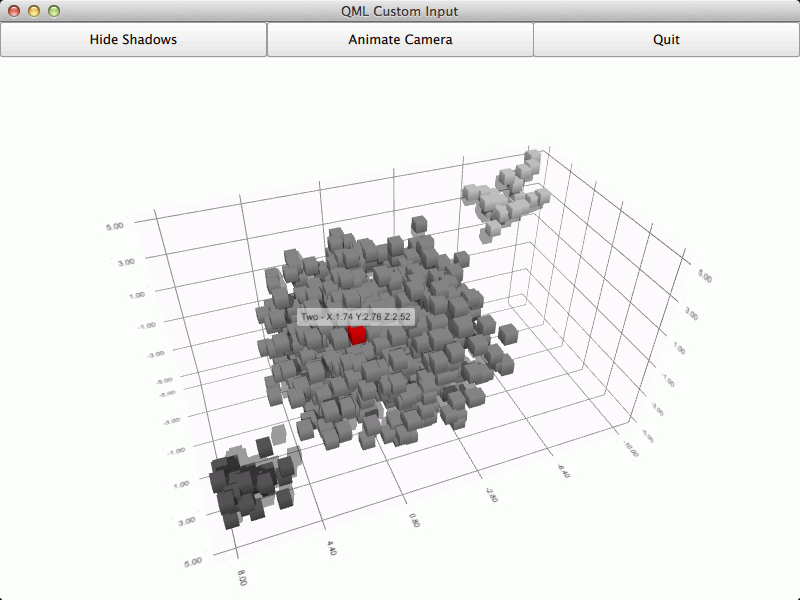
要运行范例从 Qt Creator ,打开 欢迎 模式,然后选择范例从 范例 . For more information, visit Building and Running an Example.
The default input handling mechanism is disabled by setting the inputHandler property to null.
        Scatter3D {
...
            inputHandler: null
...
The on mouseover selection handling is implemented using standard MouseArea to capture the mouse events. The mouse area is configured to capture hover events and has two custom properties for
mouseXandmouseYto store the last known mouse coordinates.MouseArea { id: inputArea anchors.fill: parent hoverEnabled: true acceptedButtons: Qt.LeftButton | Qt.RightButton property int mouseX: -1 property int mouseY: -1Whenever a pointer movement related signal is received the code updates the
mouseXandmouseY特性。onPositionChanged: { mouseX = mouse.x; mouseY = mouse.y; }As the selection is one shot, and is cleared each time a 3D frame is rendered, a timer is setup to retrigger selection so that the selection moves to the item currently under the mouse cursor as the camera animates around the graph even when the mouse cursor is not moving.
Timer {
    id: reselectTimer
    interval: 10
    running: true
    repeat: true
    onTriggered: {
        scatterGraph.scene.selectionQueryPosition = Qt.point(inputArea.mouseX, inputArea.mouseY);
    }
}
The camera has a zoom factor that represents amount of zoom in percentages. In this example the zoom range is limited between 10% and 500%. This range is then divided to four subranges where angleDelta is scaled to different amount of zoom change based on the current subrange.
...
        onWheel: {
            // Adjust zoom level based on what zoom range we're in.
            var zoomLevel = scatterGraph.scene.activeCamera.zoomLevel;
            if (zoomLevel > 100)
                zoomLevel += wheel.angleDelta.y / 12.0;
            else if (zoomLevel > 50)
                zoomLevel += wheel.angleDelta.y / 60.0;
            else
                zoomLevel += wheel.angleDelta.y / 120.0;
            if (zoomLevel > 500)
                zoomLevel = 500;
            else if (zoomLevel < 10)
                zoomLevel = 10;
            scatterGraph.scene.activeCamera.zoomLevel = zoomLevel;
        }
...
The camera is animated to constantly rotate around the graph with two animations. The rotation around the graph is done with a simple NumberAnimation that just increments during 20 seconds from 0 degrees to 360 degrees and sets the
xRotation特性。NumberAnimation { id: cameraAnimationX loops: Animation.Infinite running: true target: scatterGraph.scene.activeCamera property:"xRotation" from: 0.0 to: 360.0 duration: 20000 }The camera movement up and down is implemented with a SequentialAnimation that varies the
yRotationproperty of the camera from 5 degrees to 45 degrees and back with in and out easing.SequentialAnimation { id: cameraAnimationY loops: Animation.Infinite running: true NumberAnimation { target: scatterGraph.scene.activeCamera property:"yRotation" from: 5.0 to: 45.0 duration: 9000 easing.type: Easing.InOutSine } NumberAnimation { target: scatterGraph.scene.activeCamera property:"yRotation" from: 45.0 to: 5.0 duration: 9000 easing.type: Easing.InOutSine } }
